Contact Us

If you still have questions or prefer to get help directly from an agent, please submit a ticket.
We’ll get back to you as soon as possible.

  • Submit a Ticket
  • Home
  • Features
  • Mobile Check Capture

Installing Mobile Check Capture

Learn how to easily set up Mobile Check Capture for seamless check processing on your device.

Contact Us

If you still have questions or prefer to get help directly from an agent, please submit a request.
We’ll get back to you as soon as possible.

Please fill out the contact form below and we will reply as soon as possible.

  • Integrations
    QuickBooks Online QuickBooks Desktop Theramanager Xero
  • Invoices
    Invoice Delivery Best Practices
  • Features
    Automatic Batch Reconciliation Customer Portal Dashboard Frequently Asked Questions Getting Started Import Tools Invoice Generator Invoice Messenger Late Fees Mobile Check Capture Paper Mail Payment Plans RDC (Remote Deposit Capture) Reminders Technology Fees
  • Payments
    ACH Check Processing Credit Card Processing Deposits Schedules & Recurring Billing Stored Cards Transactions PayPal
  • Reports
    Customer Email Reminders Sync History Feature Utilization
  • Settings
    Billing Branding General Settings User Accounts
  • Customers
+ More

Table of Contents

Overview How To Install Mobile Check Capture Step 1 Step 2 Step 3 Still Having Trouble?

Overview

Mobile Check Capture allows you to take photos of checks using a mobile device and upload them directly into Biller Genie for processing.

This option is ideal if you do not use a physical check scanner.


How To Install Mobile Check Capture

Step 1

Log in to your Biller Genie account.

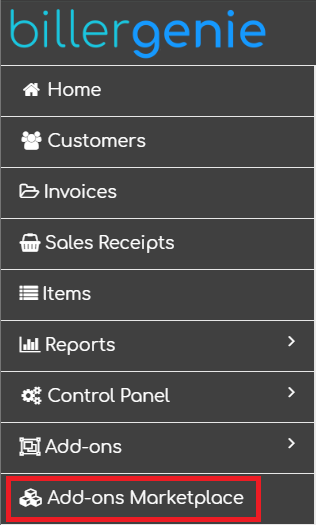
Navigate to:

Add-Ons Marketplace


Step 2

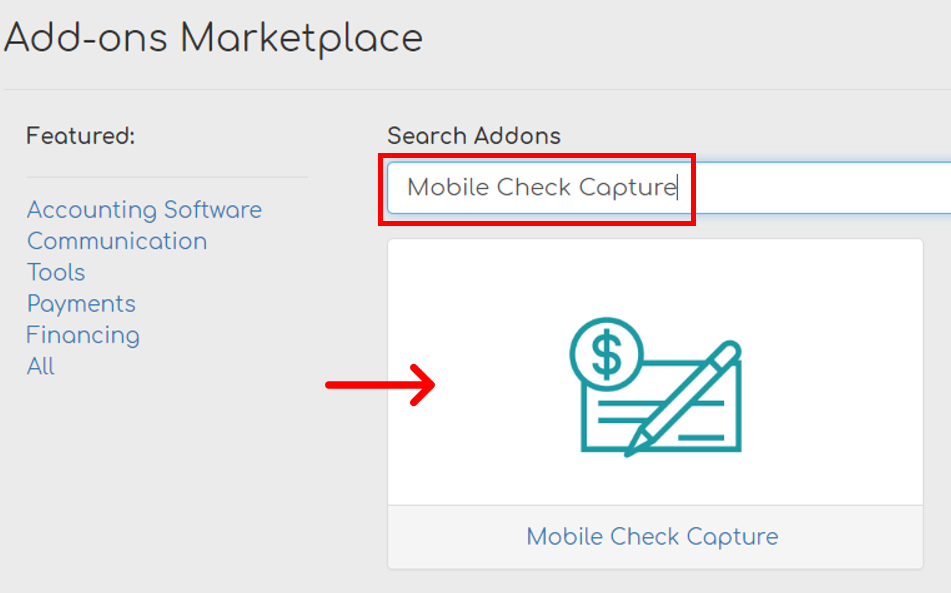
Locate and click the Mobile Check Capture tile.


Step 3

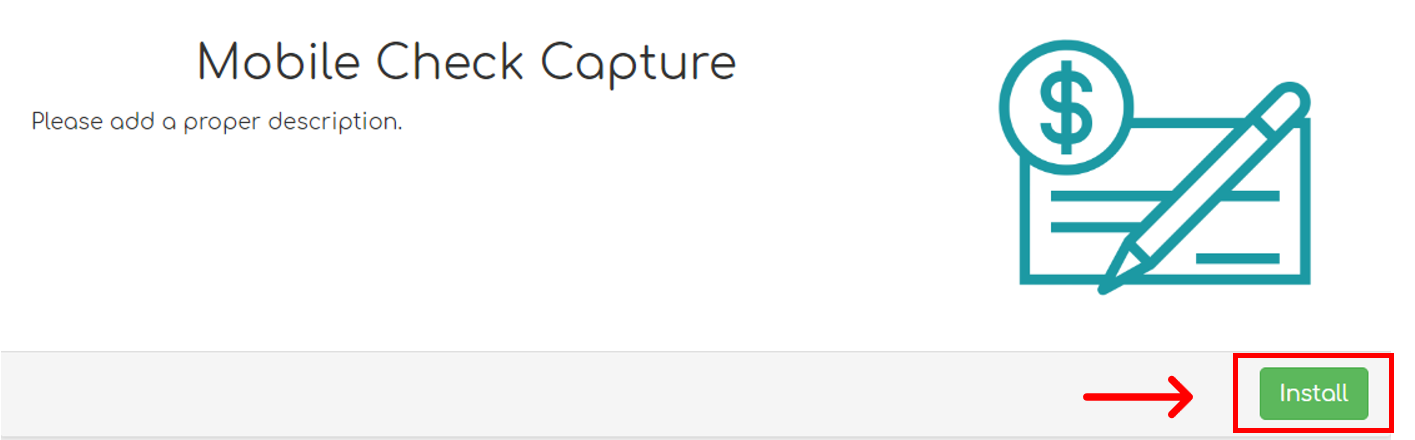
Click Install.


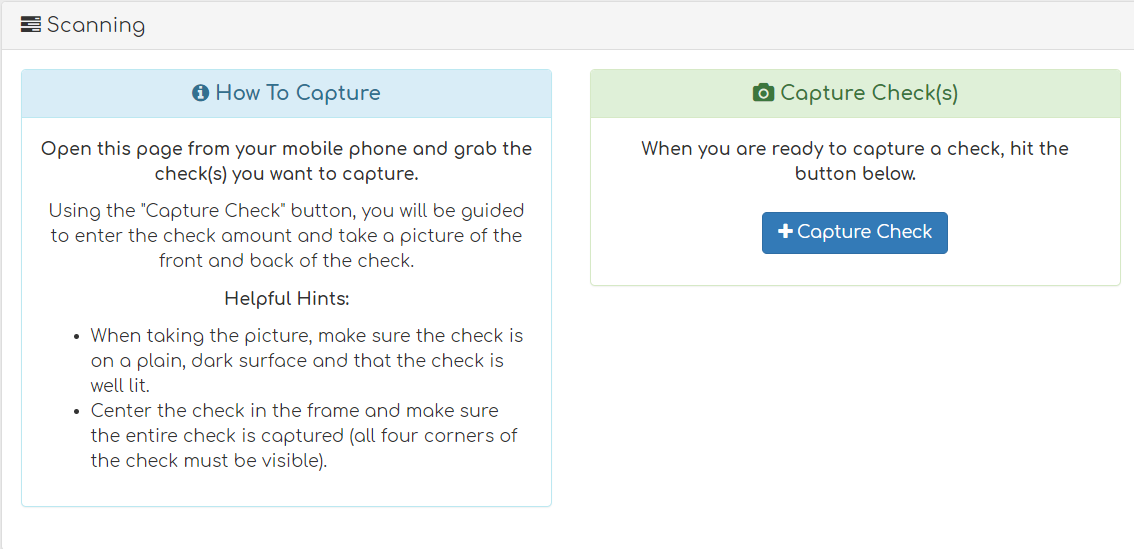
Once installed, you are ready to begin capturing check images using a mobile device.


Still Having Trouble?

If you are unable to install or access Mobile Check Capture, contact the Biller Genie support team at support@billergenie.com and include the following details:

  • Confirmation that the add-on was installed
  • The device you are using (iOS or Android)
  • Any error messages displayed

Providing this information will help our support team assist you as efficiently as possible.

mobiledeposit checkcapture

Was this article helpful?

Yes
No
Give feedback about this article

Related Articles

  • Installing Remote Deposit Capture (RDC)
  • Capturing Check Images (Mobile)
  • Capturing Check Images (RDC)
logo

Headquarters

3550 Biscyane Bivd
Suite 704
Miami, FL 33137

Software

  • Features
  • Integrations

Learning

  • Help Center
  • FAQ
  • Blog
  • Schedule a Demo

About Us

  • Contact Us
  • Our Story
  • Team
  • News
  • Careers

My Account

  • Login
  • Register
  • Submit a Ticket

Partners

  • Accountants/Bookkeepers
  • Financial Institutions
  • Franchises
  • Payment Providers
©2022 Biller Genie®. All Rights Reserved. Merchant License | Terms of Use | Privacy Policy
"Xero" and "Beautiful business" are trademarks of Xero Limited. | Intuit, QuickBooks, TurboTax, Proconnect and Mint are registered trademarks of Intuit Inc. | AccountingSuite is a registered trademark of YellowLabs Software, LLC. I All other trademarks, service marks and other registered marks are the property of their respective owners.

Knowledge Base Software powered by Helpjuice

Expand