Contact Us

If you still have questions or prefer to get help directly from an agent, please submit a ticket.
We’ll get back to you as soon as possible.

  • Submit a Ticket
  • Home
  • Payments
  • ACH

Connecting your ACH Gateway to Biller Genie

Learn how to seamlessly integrate your ACH gateway with Biller Genie for efficient payment processing and streamlined billing.

Contact Us

If you still have questions or prefer to get help directly from an agent, please submit a request.
We’ll get back to you as soon as possible.

Please fill out the contact form below and we will reply as soon as possible.

  • Integrations
    AccountingSuite QuickBooks Online QuickBooks Desktop Theramanager Xero
  • Invoices
    Invoice Delivery Best Practices
  • Features
    Automatic Batch Reconciliation Customer Portal Dashboard Frequently Asked Questions Getting Started Import Tools Invoice Generator Invoice Messenger Late Fees Mobile Check Capture Paper Mail Payment Plans RDC (Remote Deposit Capture) Reminders Technology Fees
  • Payments
    ACH Check Processing Credit Card Processing Deposits Schedules & Recurring Billing Stored Cards Transactions PayPal
  • Reports
    Customer Email Reminders Sync History Feature Utilization
  • Settings
    Billing Branding General Settings User Accounts
  • Customers
+ More

Table of Contents

Overview Step 1 Navigate to Add-ons, select ACH Processing. Step 2 Select Continue on the tile for I have a CC processor Step 3 Select the gateway that your ACH provider has set up for you. Step 4 Input the gateway credentials and click “Connect” Step 5 Configure ACH Important Notes Still Having Trouble?

Overview

If your payment provider has supplied you with ACH gateway credentials, you can connect your own ACH processing account directly to Biller Genie.

This allows Biller Genie to securely transmit ACH payment transactions through your existing payment processor rather than using a default gateway.

Before beginning, make sure your ACH provider has supplied the required gateway credentials. These credentials are typically different from the username and password used to log into your processor’s website.


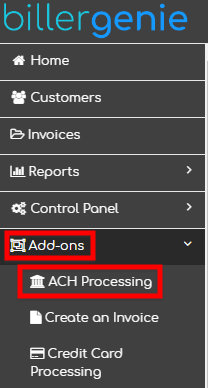
Step 1 Navigate to Add-ons, select ACH Processing.
 

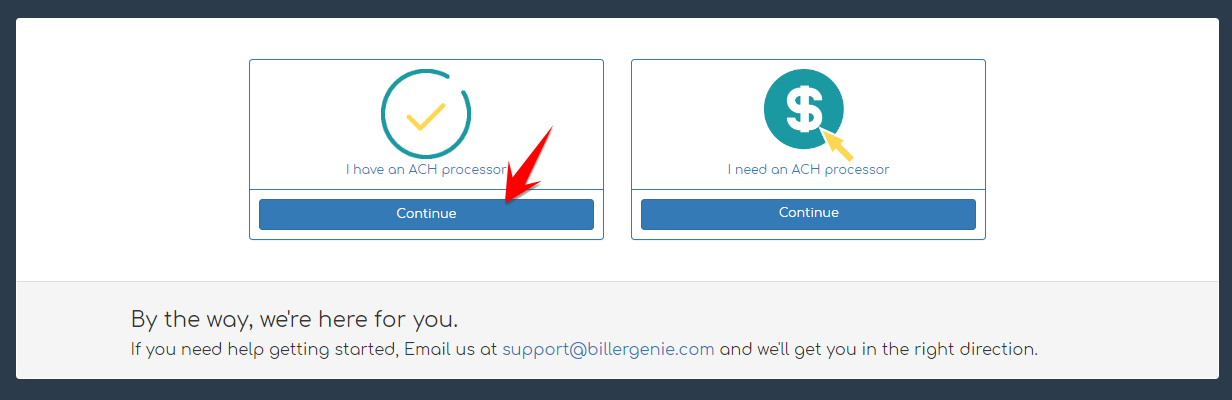
Step 2 Select Continue on the tile for I have a CC processor
 

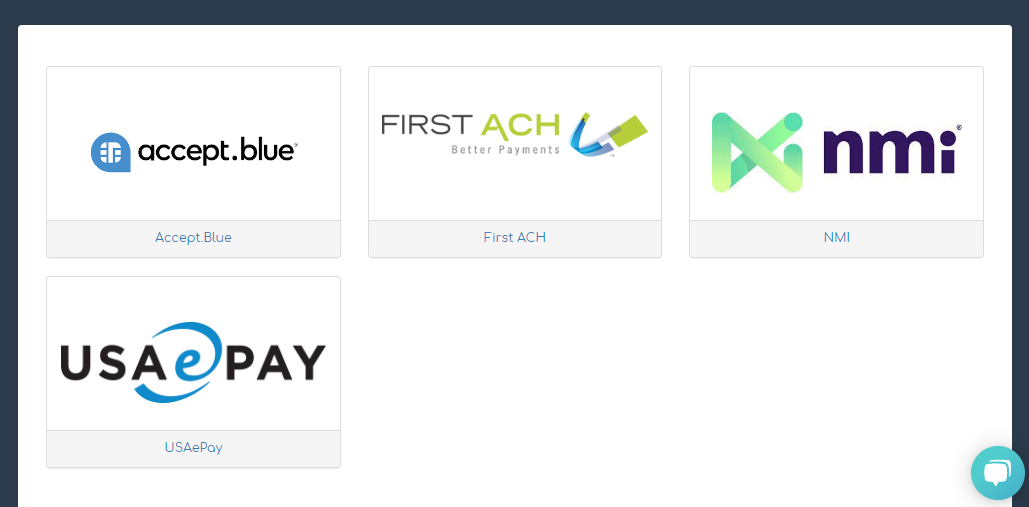
Step 3 Select the gateway that your ACH provider has set up for you.
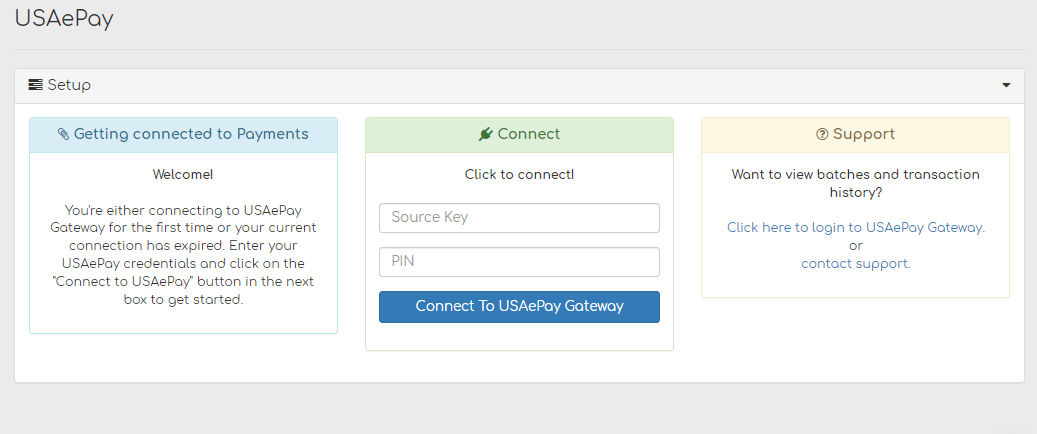
Step 4 Input the gateway credentials and click “Connect”

Please note that each gateway has their own input requirements. These inputs are different than your username and password to access the account.


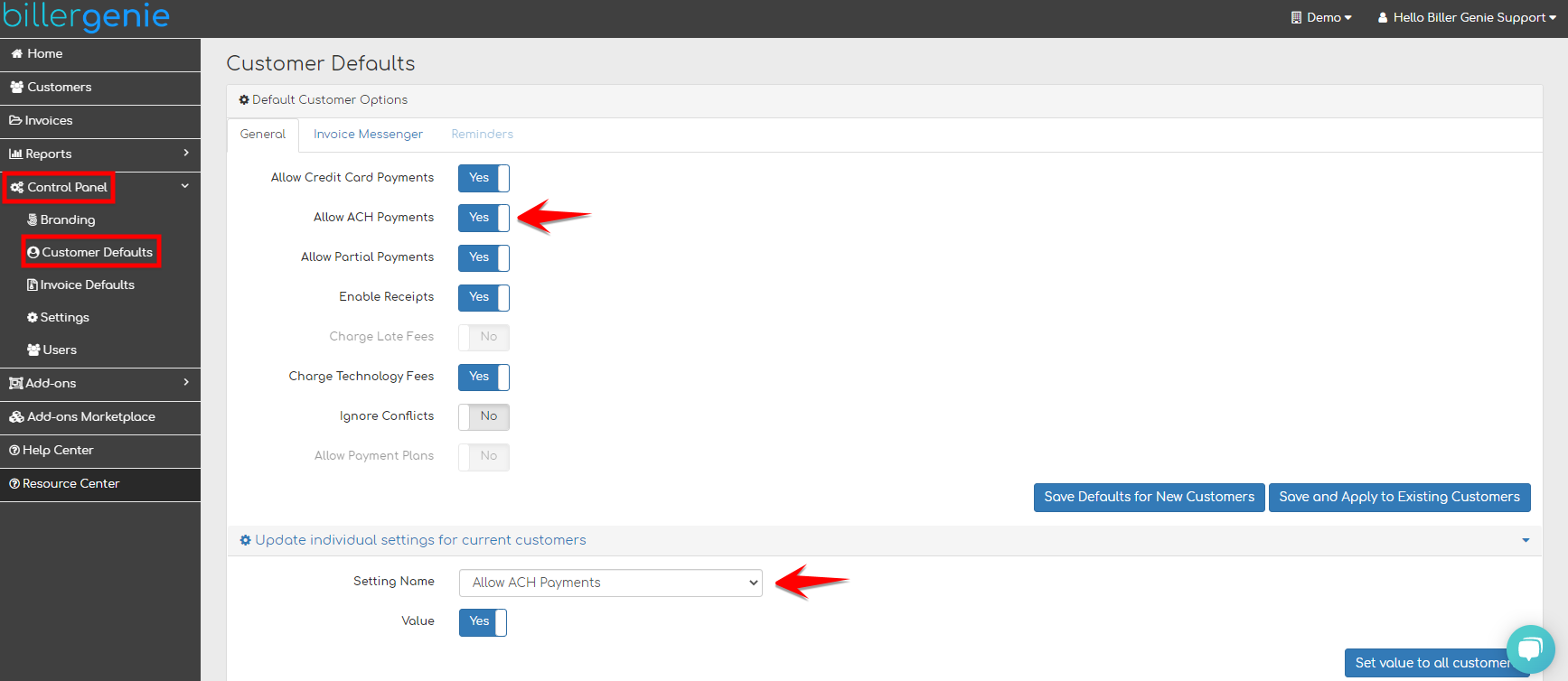
Step 5 Configure ACH

Under Control Panel > Customer Defaults to Allow ACH Payments.


Important Notes

  • Each gateway has unique credential requirements.
  • Credentials must be provided directly by your payment processor.
  • If incorrect credentials are entered, the connection will fail.
  • ACH must be enabled in Customer Defaults after connection.

If you need assistance locating your gateway credentials, contact your payment provider directly.


Still Having Trouble?

If you are experiencing issues connecting your ACH gateway, please contact the Biller Genie support team at:

support@billergenie.com

Include the following information:

  • The gateway you selected
  • Any error messages displayed during connection
  • Confirmation that the credentials were provided by your ACH processor
  • Whether ACH is enabled in Customer Defaults

Providing these details will help our support team resolve the issue more efficiently.

biller genie ach gateway nmi accept blue usaepay first ach fortis reliafund

Was this article helpful?

Yes
No
Give feedback about this article

Related Articles

  • ACH Settlement Timeframe
  • Storing and Authorizing ACH Payment Methods in Biller Genie
  • Allowing Credit Card & ACH Payments
  • ACH and Credit Card Rejection Codes
logo

Headquarters

3550 Biscyane Bivd
Suite 704
Miami, FL 33137

Software

  • Features
  • Integrations

Learning

  • Help Center
  • FAQ
  • Blog
  • Schedule a Demo

About Us

  • Contact Us
  • Our Story
  • Team
  • News
  • Careers

My Account

  • Login
  • Register
  • Submit a Ticket

Partners

  • Accountants/Bookkeepers
  • Financial Institutions
  • Franchises
  • Payment Providers
©2022 Biller Genie®. All Rights Reserved. Merchant License | Terms of Use | Privacy Policy
"Xero" and "Beautiful business" are trademarks of Xero Limited. | Intuit, QuickBooks, TurboTax, Proconnect and Mint are registered trademarks of Intuit Inc. | AccountingSuite is a registered trademark of YellowLabs Software, LLC. I All other trademarks, service marks and other registered marks are the property of their respective owners.

Knowledge Base Software powered by Helpjuice

Expand