
General Overview
This guide will serve as some further specifics to consider when fully configuring your technology fee set-up.
Configuring Technology Fees
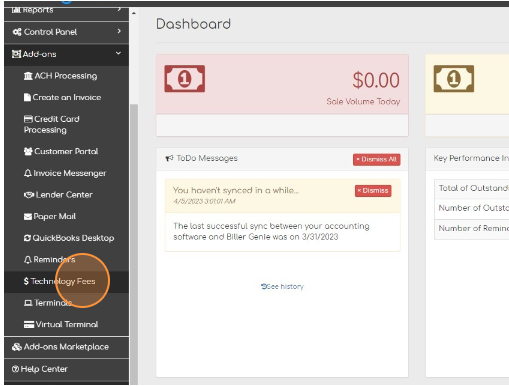
- From the dashboard, navigate to Add-Ons > Technology Fees.
- Switch Add Technology Fees to Yes in Settings to begin charging fees.
- Select the Technology Fee's Mode
- Set the Fee Type (See note below)
- Set the Technology Fee Amount

Additional Notes
For Fee Type: It's recommended to use “Add as Sales Receipts” if an accounting software is connected
For Amount: Only percentage is available
For Account Name: This will only appear if an accounting software is connected. You can edit this name in your accounting software. If the name is updated and the mode is set to surcharging, the name will remain as “Surcharge” when viewed by your customers
Once configured, you need to activate for selected or all customers - see below for details
The purpose of technology fees is to offset or recover your merchant service expenses. You will collect additional revenue through technology fees to help cover the expense of your processing fees