Storing Card Payment Methods
Add convenience and security by storing your customer's payment info in your gateway vault
Table of Contents
Overview
You can securely store credit/debit card and ACH payment methods for your customers inside Biller Genie.
Stored payment methods can be used for:
- Future invoice payments
- Auto Pay
- Payment schedules
How To Store a Payment Method
Step 1
Log in to your Biller Genie account.
Navigate to:
Customers
Search for the customer and click on the Customer ID or Display Name to open their profile.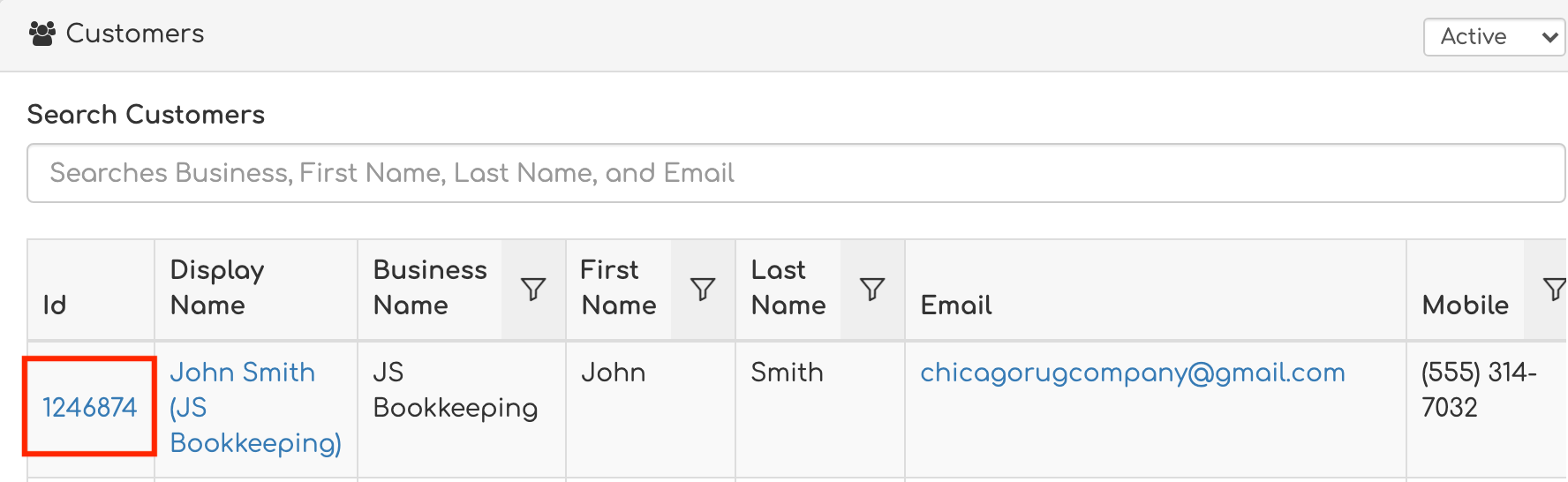
Step 2
Click the Stored Payment Methods tab.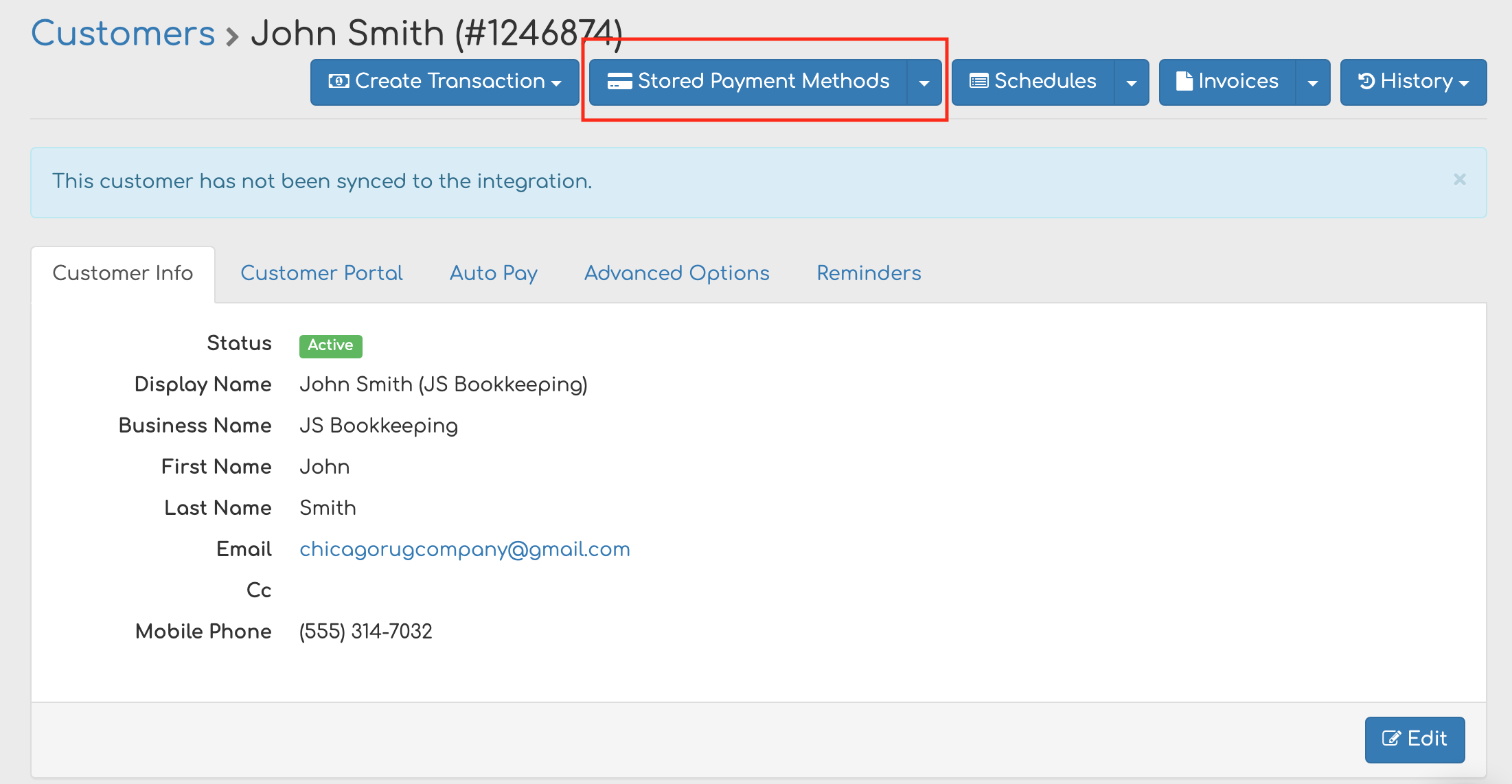
Step 3
Click Add a Stored Payment Method.
Select Add a Stored Card

If you would like the customer to enter their payment details themselves, refer to:
Invite a Customer to Store a Payment Method
Adding a Credit or Debit Card
Enter the following information:
- Card number
- Expiration date
- Security code (CVV)
If the customer’s address is already on file, it will auto-populate.
Click Add Card to save.
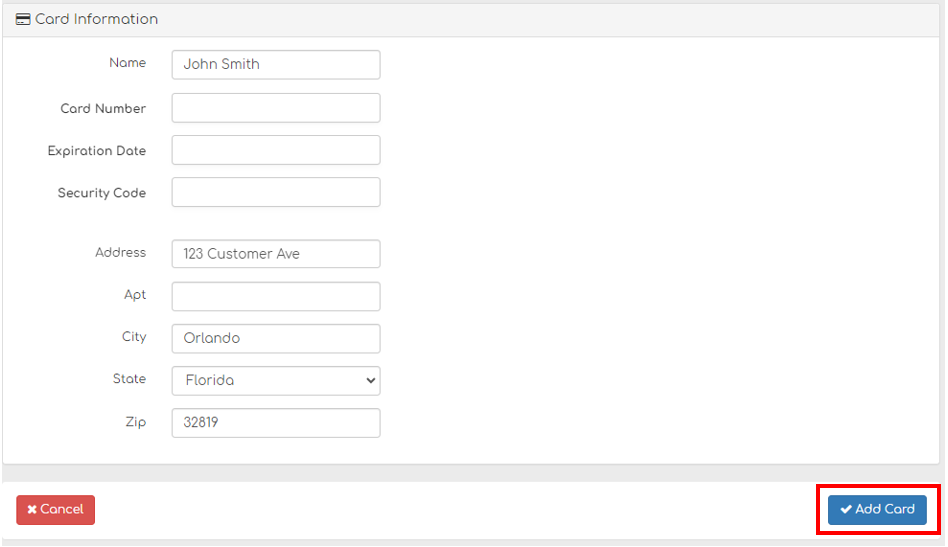
The card will be securely tokenized and stored for future use.
Removing a Stored Payment Method
If a stored payment method is currently assigned to Auto Pay, it cannot be deleted until it is removed from Auto Pay.
To delete a stored method:
- Disable or update Auto Pay settings for the customer.
- Return to Stored Payment Methods and remove the payment method.
Still Having Trouble?
If you are unable to store or remove a payment method, contact the Biller Genie support team at support@billergenie.com and include the following details:
- Customer name
- Payment type (Card or ACH)
- Any error messages displayed
Providing this information will help our support team assist you as efficiently as possible.