
Once a check has been captured with either Mobile Check Capture or Remote Deposit Capture (RDC), it sits in the Add-On view waiting to be processed. Processing means matching the captured check to a specific invoice — or recording it as a standalone transaction not tied to an invoice — and submitting the payment to the banking network. This article explains how the matching search works, what the partial-payment rules are, when to use a standalone check, and how processed checks sync back to your accounting software.
If you haven't captured a check yet, see Capturing Checks: Mobile or MagTek Reader. For the conceptual overview of how check processing works, see Check Processing Overview.
Where captured checks live
Captured-but-not-yet-processed checks are visible from either Add-On page (the queue is shared between Mobile and RDC):
- Add-Ons > RDC
- Add-Ons > Mobile Check Capture
A check captured on mobile shows up in both places. Whoever processes the check doesn't have to be the same person who captured it — capturing and processing are deliberately separate steps so that scanning can be done by one staff member and matching to invoices can be done by another (often someone with accounting access).
Matching a check to an invoice
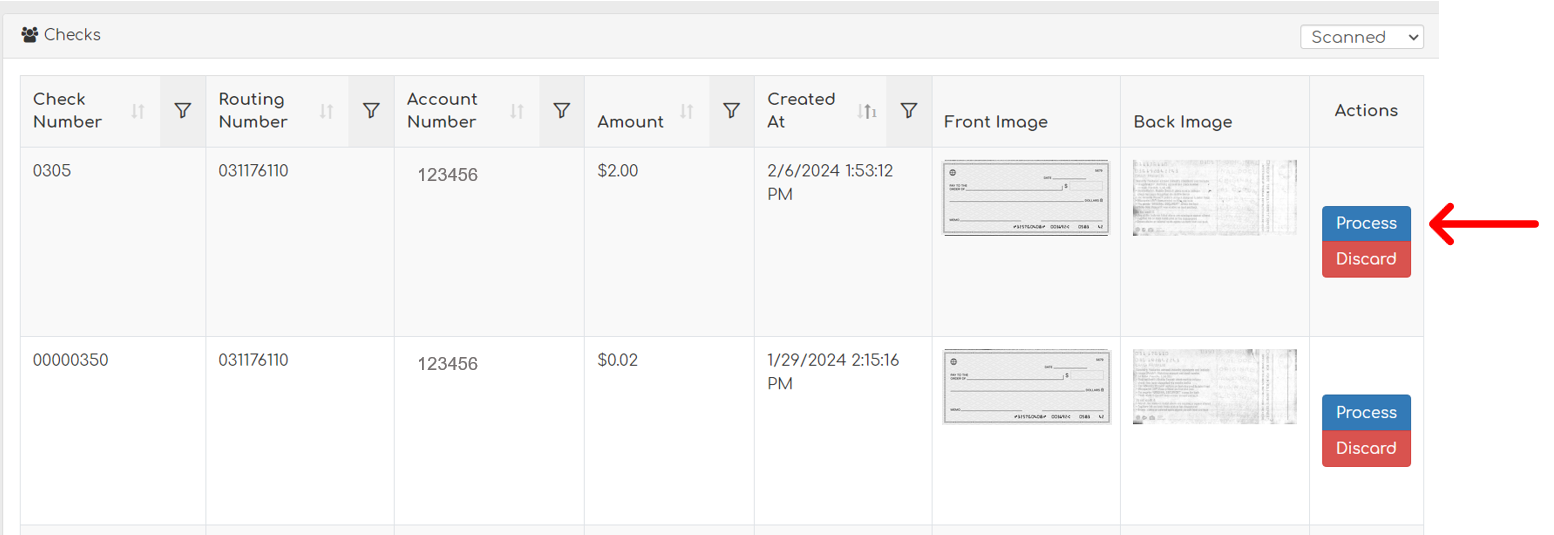
Step 1. From the Add-Ons page, locate the captured check and click Process.
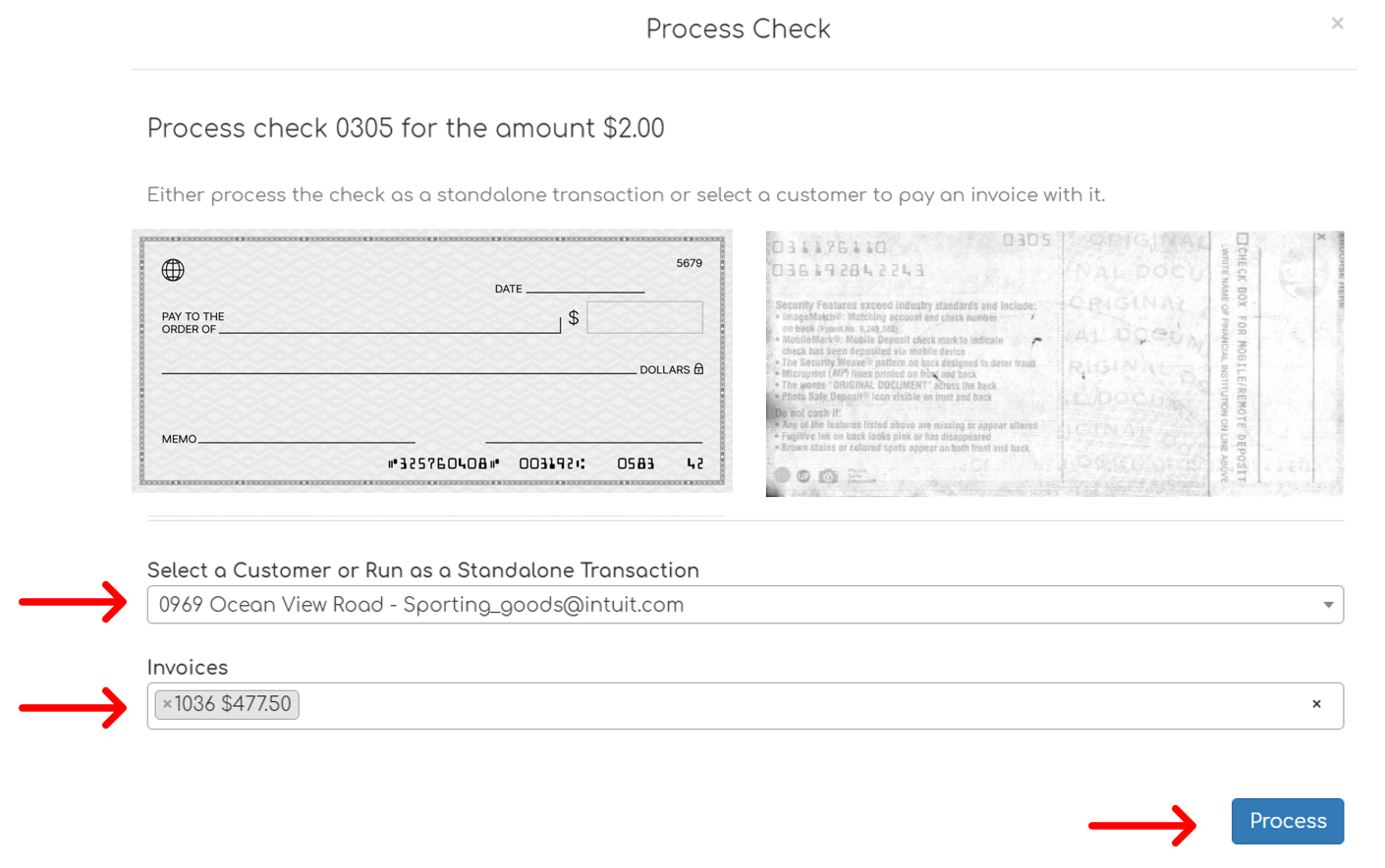
Step 2. Use the search field to find the customer and invoice this check should pay. Click Process to submit the transaction.
How the customer/invoice search works
The search field on the processing form is a free-text search that matches your input against multiple fields on each invoice in your account. You can type any one of:
- Customer name — Biller Genie searches across all the customer-name fields on file: First Name, Last Name, Display Name in Biller Genie, Business Name, and the customer's name as it appears in your connected accounting software (QuickBooks Online, QuickBooks Desktop, or Xero — whichever you use). Partial matches work.
- Invoice number — the invoice's reference number as displayed in Biller Genie.
-
Amount — matches against the invoice total, the amount the customer has already paid toward the invoice, or the current remaining balance. If a check is $250 and an invoice's balance is $250, searching
250will find it.
How the check amount must compare to the invoice amount
When you select a single invoice to apply the check to, Biller Genie validates the check amount against the invoice's remaining balance. The rule depends on the customer's Allow Partial Payments setting (on the customer record, not the invoice).
| Customer's Allow Partial Payments setting | Check amount rule |
|---|---|
| ON | Check amount can be less than or equal to the invoice's remaining balance. Underpayments are allowed; overpayments are rejected. |
| OFF | Check amount must exactly equal the invoice's remaining balance. No underpayments, no overpayments. |
If you select multiple invoices for a single check (the check covers more than one invoice for the same customer), the sum of all the selected invoices' remaining balances must equal the check amount exactly, regardless of the Allow Partial Payments setting.
For more on partial payments at the customer level, see Allowing Partial Payments on Invoices.
Processing a standalone check (not tied to an invoice)
If the check doesn't correspond to a specific invoice — maybe it's a deposit, a one-off retainer, or a payment for something you haven't invoiced yet — you can process it as a Standalone Transaction instead. On the processing form, leave the customer field set to "Standalone Transaction" rather than picking a specific customer/invoice.
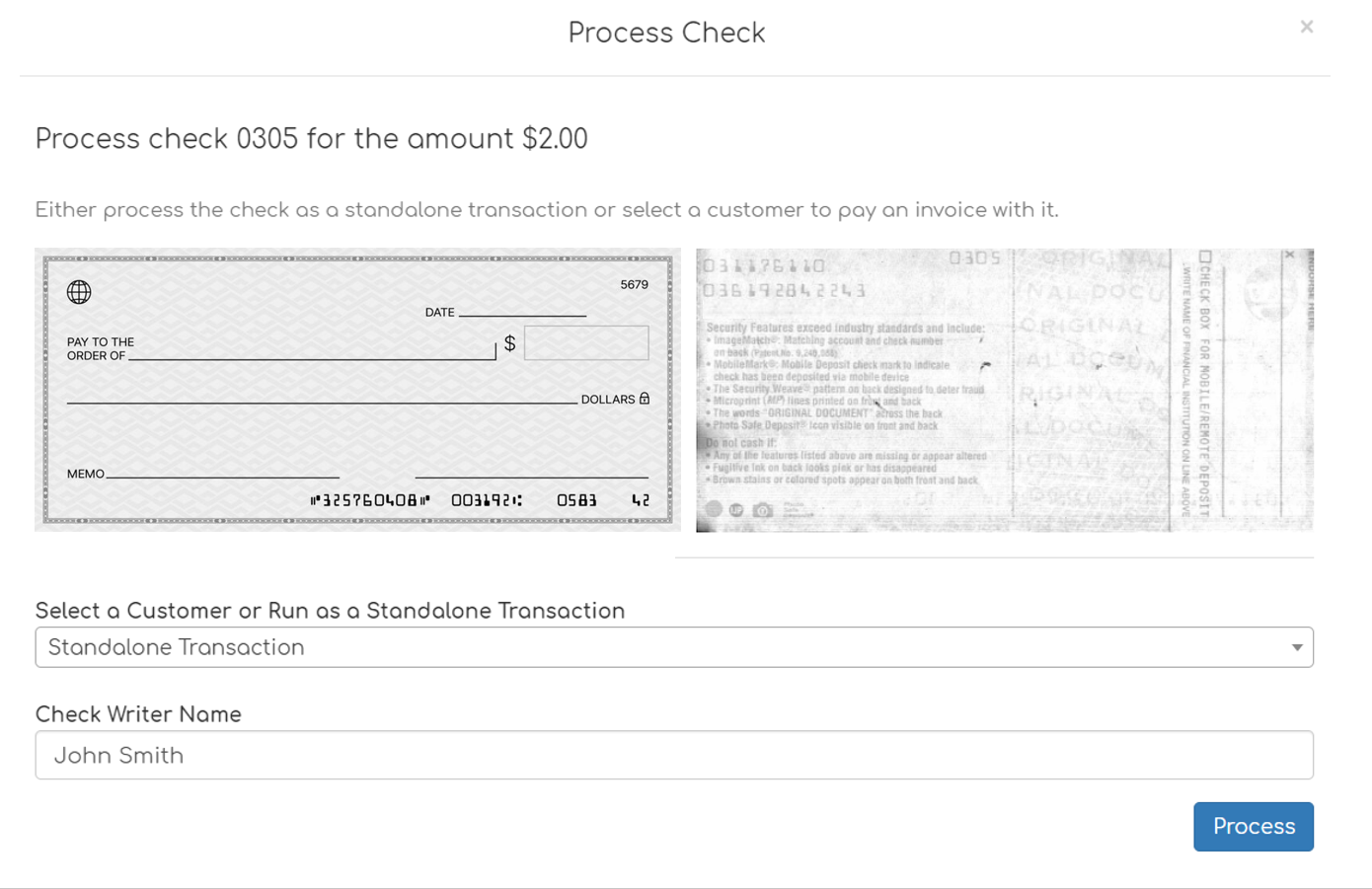
Standalone checks work very much like a Virtual Terminal transaction — Biller Genie records the payment, captures the funds, and treats it as a standalone deposit. The check is not linked to any invoice.
How processed checks sync to your accounting software
The accounting-software sync behavior depends on where the invoice originated:
- Check linked to an invoice from your accounting software (the invoice was created in QBO / QBD / Xero and synced into Biller Genie) — once the check settles, Biller Genie pushes the payment back to your accounting software. The invoice closes in both Biller Genie and your accounting software automatically.
- Check linked to a Biller-Genie-native invoice (the invoice was created directly in Biller Genie, not in your accounting software) — the payment is applied to the invoice and the balance updates inside Biller Genie. Because the invoice doesn't exist in your accounting software, there's no payment to sync there.
- Standalone check (no invoice) — as noted above, does not sync. Record manually.
After you click Process
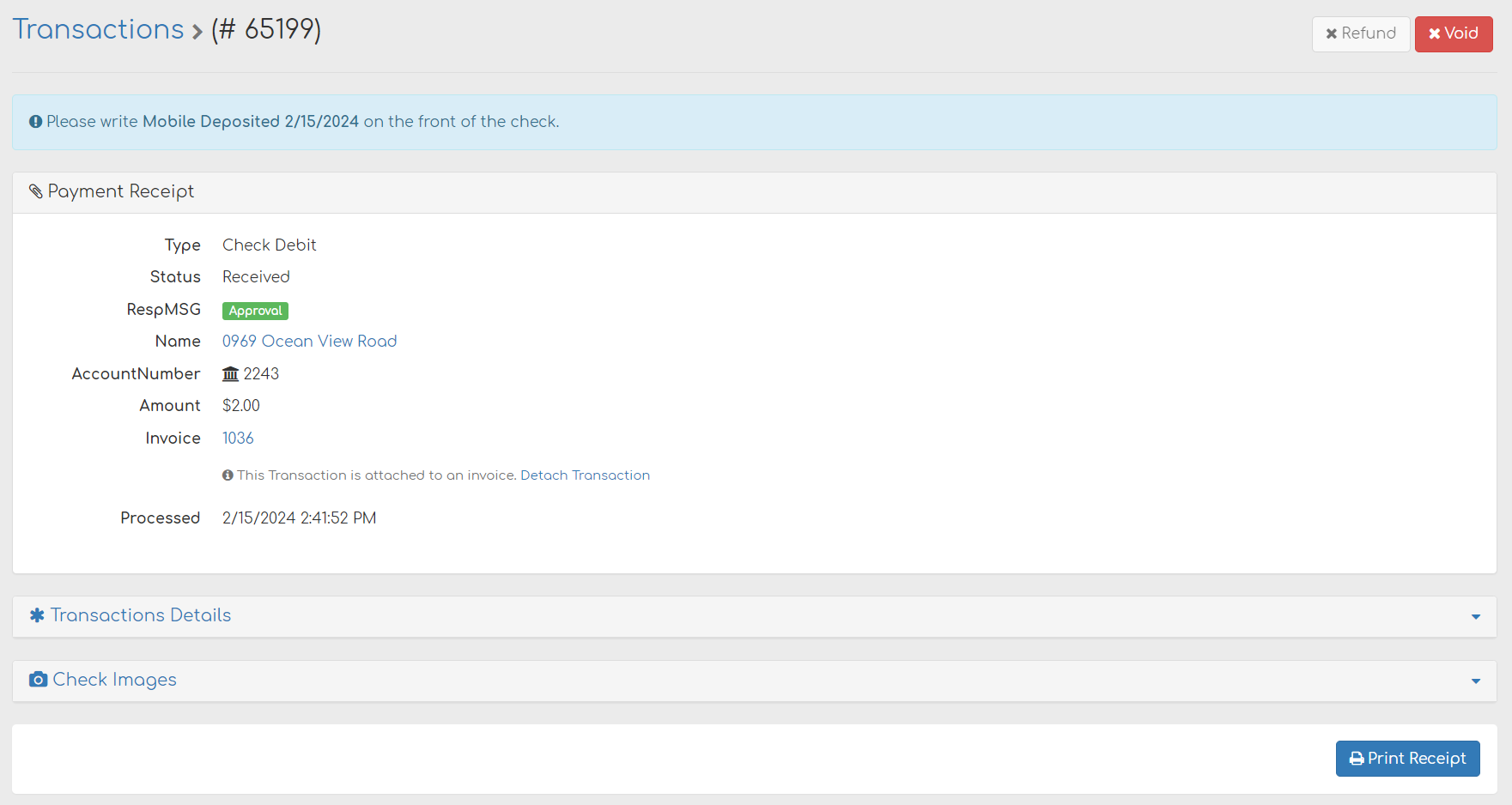
Once you submit, you're taken to the transaction details page where you can:
- View the full transaction details
- Void the transaction (if it's still within the void window)
- Print or email the receipt
- View the captured check image
The transaction now appears on the Pending Transactions Report while it's working through the banking network (typically 3–5 business days). If it rejects, it moves to the Rejected Transactions Report and the invoice reopens for collection.
To process more checks, return to Add-Ons > RDC or Add-Ons > Mobile Check Capture.
If a check was rejected with a MICR error
Between June and early September 2026, some checks were rejected with the message "MICR line must have exactly 2 transit symbols to be valid". This was caused by an issue on our side and has been fixed. You do not need to recapture the check.
- If the check is still in your capture queue, select it and click Process again.
- If you discarded the check, change the queue filter to Discarded, click Reinstate on the check, then process it as normal.
If a check still rejects with that message, contact support@billergenie.com with the capture date and check amount.
Still having trouble?
If you can't find an invoice in the search, the amount validation is rejecting your check, or the transaction doesn't appear as expected, contact support@billergenie.com with:
- Customer name
- Invoice number (if applicable)
- Check amount and the invoice's current balance
- Whether the check was captured via RDC or Mobile
- Any error messages displayed