
Biller Genie supports multiple users on one account. This article covers everything you need: adding new users, editing them, disabling them when someone leaves, the seven granular permission roles Biller Genie offers, and the constraints around the SuperUser role.
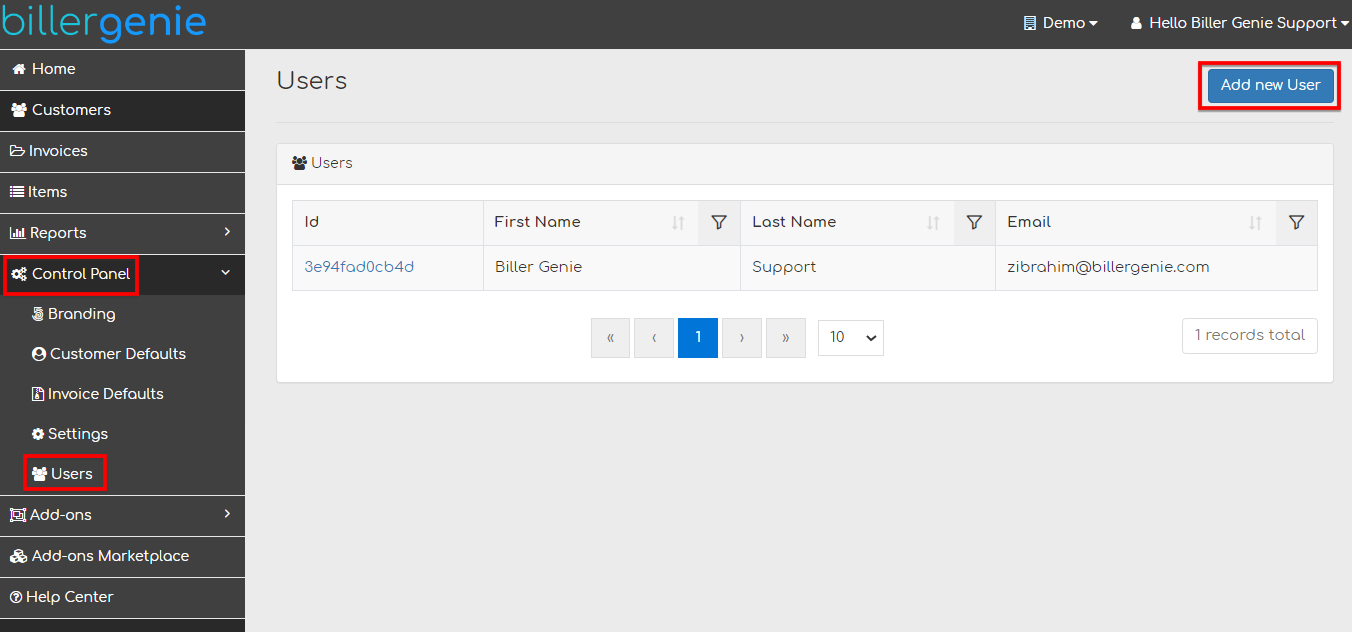
All user management happens at Control Panel > Users. To make changes, you need the SuperUser role.
Adding a new user
Step 1. Go to Control Panel > Users and click Add New User.
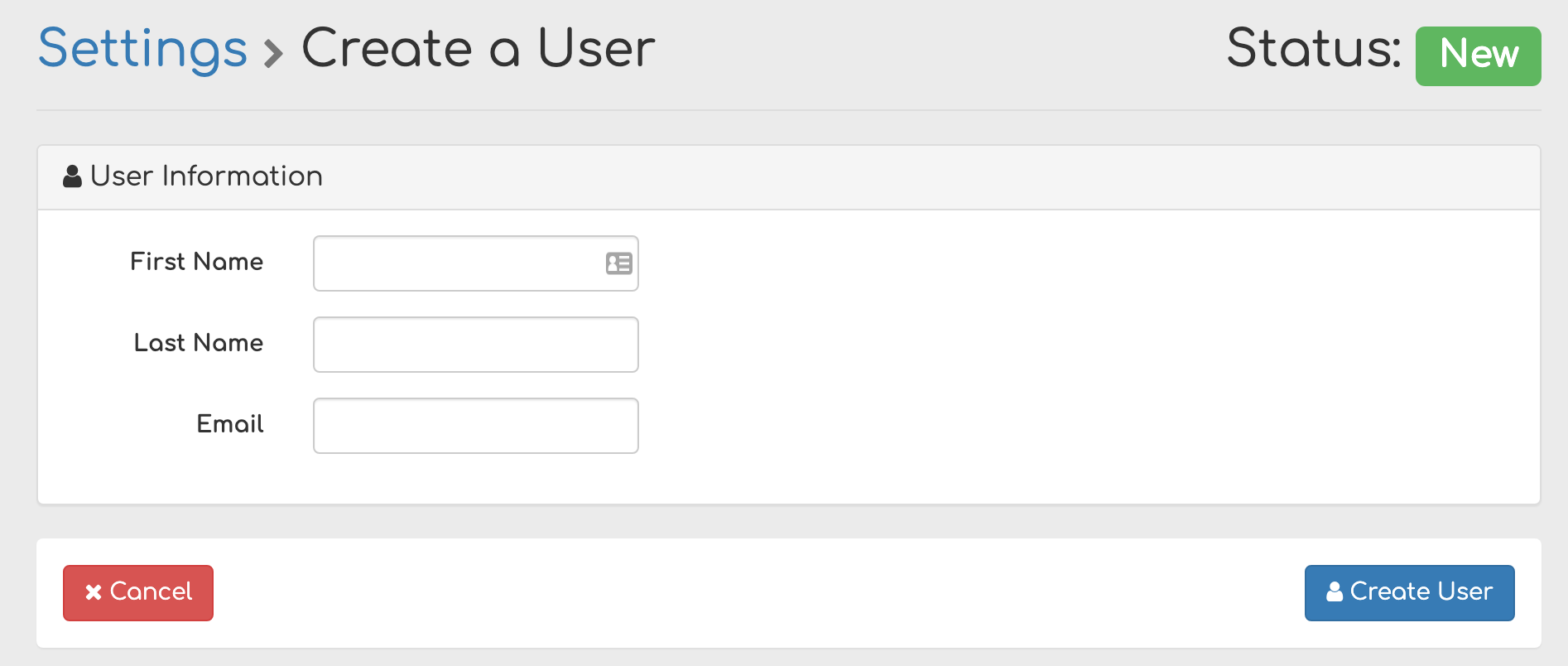
Step 2. Enter the new user's first name, last name, and email address. Click Create User.
Step 3. The new user receives a confirmation email at the address you entered. They click the link to verify the email and set their password. Until they confirm, the account is created but they cannot log in.
If the confirmation email doesn't arrive, you can resend it from the user's record. The user's first login will require setting a password and (recommended) enabling Two-Factor Authentication.
Editing a user
From Control Panel > Users, click the user's ID to open their record, then click Edit.

What you can edit: First Name, Last Name, the Disable toggle (on other users only), and Roles (if your plan includes granular permissions). When editing yourself, you can also change your password and your TOTP / Two-Factor Authentication setup.
What you cannot edit: The username (email address) is read-only on every user, including the first one. If a team member's email address has changed, the workflow is to disable the old account and add a new one — there is no way to change the email on an existing user record. The email confirmation flow is what binds the account to the human.
Disabling a user (when someone leaves)
When a team member leaves your company, disable their user account to immediately revoke access. The user is not deleted — they're kept on the record so historical actions (invoices created by them, payments processed by them, etc.) still attribute correctly.
Step 1. Open the user's record and click Edit.

Step 2. Toggle Disable from Off to On and click Update User.

The user is disabled immediately. Any active session they have is invalidated on their next request to Biller Genie, and they can no longer log in.
Re-enabling a disabled user
If you need to reactivate a previously disabled user, edit them and toggle Disable back to Off. Reactivation can only be done by a SuperUser. A Settings Manager can disable a user but cannot reactivate one — this is intentional, to prevent a non-SuperUser from re-enabling an account that was disabled for cause.
Roles and permissions
Biller Genie offers seven granular roles. A user can be assigned any combination of them. Some roles are restrictive (a user with only DashboardViewer can see the dashboard and nothing else); others are additive (you can give a user ReportViewer + DashboardViewer + AddonsConfigurator without making them a SuperUser).
| Role | What it grants |
|---|---|
| Super User | Full access to everything in your Biller Genie account. The first user created on a new account is automatically a Super User. Only a Super User can add new users, change another user's roles, or reactivate a disabled user. |
| Settings Manager | Can view and edit everything under Control Panel — Settings, Branding, Customer Defaults, Invoice Defaults — but cannot manage Users (only Super Users can). |
| Add-Ons Installer | Can install and uninstall Add-Ons from the Add-Ons Marketplace. Doesn't include the right to configure them after install. |
| Add-Ons Configurator | Can view and configure already-installed Add-Ons. Doesn't include the right to install new ones. |
| Subscription Editor | Can change your Biller Genie subscription plan and billing settings. |
| Dashboard Viewer | Can view the main Dashboard with summary KPIs (collections, A/R aging, recent payments). |
| Report Viewer | Can view the Reports section (Pending Transactions, Rejected Transactions, A/R Aging, Sync Errors, etc.). |
A user with none of these roles can still log in and do day-to-day work (view customers, send invoices, process payments) — the seven roles above are for elevated capabilities, not for baseline access.
Availability of granular roles
The Permissions panel on the Edit User page is visible only when:
- Your Biller Genie subscription is on a premium plan, and
- You're a SuperUser editing another user (not editing yourself).
If you don't see the Permissions panel and you'd like to manage granular roles, contact support@billergenie.com about your plan options.
SuperUser constraint: you can't remove your own SuperUser role
If you're logged in as a SuperUser, you cannot remove the SuperUser role from your own user record — Biller Genie blocks this to prevent accidental lockouts. To demote yourself, have another SuperUser remove the role from your record. If no other SuperUser exists, promote a teammate to SuperUser first, then have them demote you.
Security best practices
- Give each person their own account. Shared accounts make it impossible to attribute actions, and disabling a shared account locks everyone out at once.
- Use granular roles, not blanket SuperUser. Only give SuperUser to people who genuinely need to manage Users and account-wide settings. A bookkeeper who needs to process payments and view reports needs ReportViewer + DashboardViewer, not SuperUser.
- Require Two-Factor Authentication for every user, especially anyone with SuperUser or Settings Manager. Biller Genie offers per-user TOTP — there's no org-wide enforcement toggle today, so you'll need to ask each user to set it up.
- Disable departing employees the same day they leave. Don't wait for the next monthly cleanup — sessions are invalidated immediately on disable.
- Audit your user list quarterly. Check that every active user still works for you and still needs Biller Genie access.