
Ready to start depositing checks electronically?
Make sure you've completed these steps before scanning your first check:
- Enable Check Processing in Biller Genie, including adding your ReliaFund credentials into the Add-on.
- Enable the Mobile Check Capture Add-on in Biller Genie.
Step 1
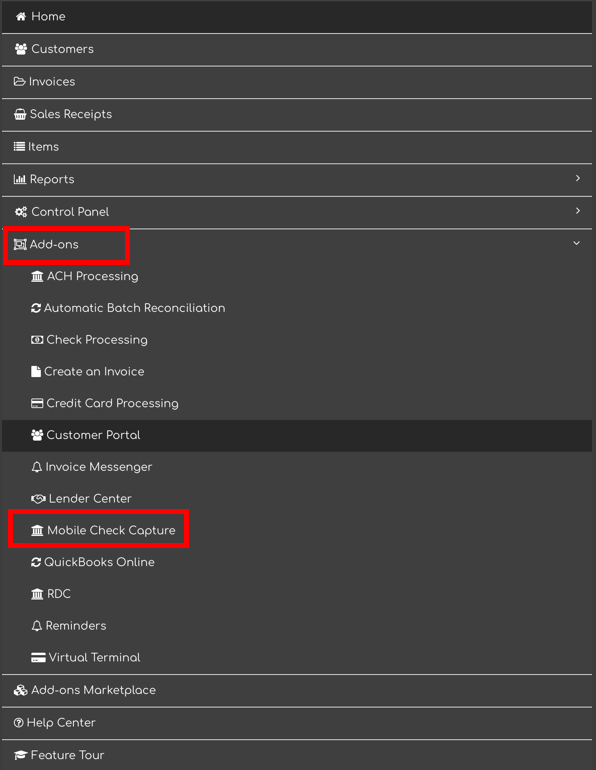
On a mobile device (smartphone or tablet) or computer, open the Biller Genie Portal, navigate to Add-ons > Mobile Check Capture
Step 2
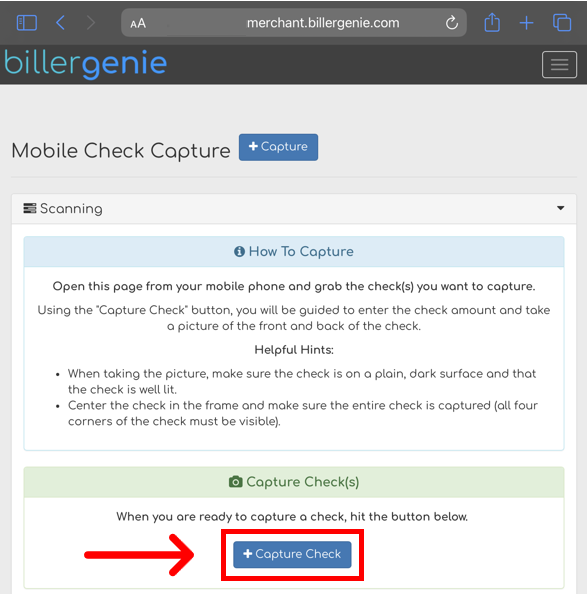
Click Capture Check
Step 3
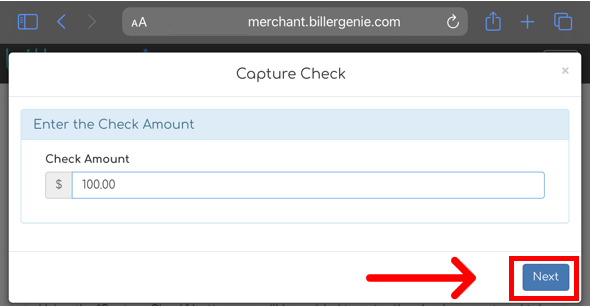
Enter the check amount
Click Next
Step 4
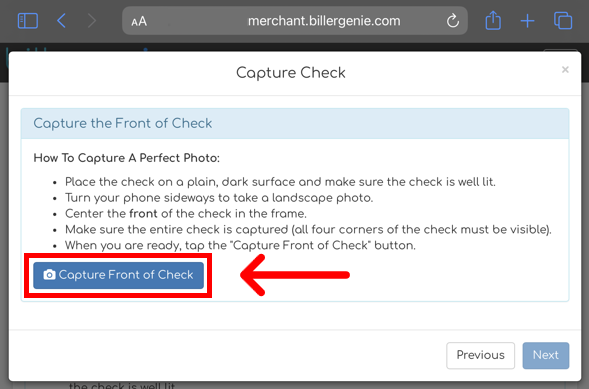
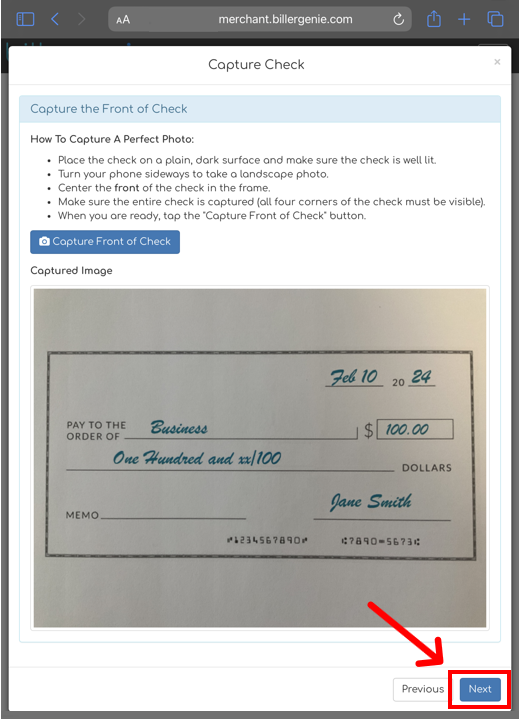
Take note of the instructions provided and click Capture Front of Check
The camera on your device will open and allow you to take a photo
Step 5
If the image is clear and legible, click Next
Otherwise, click Capture Front of Check to retake it
Step 6
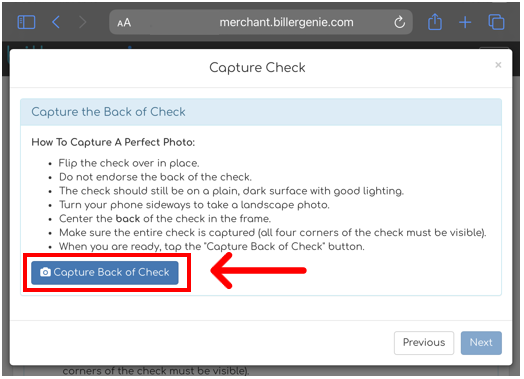
Click Capture Back of Check
Step 7
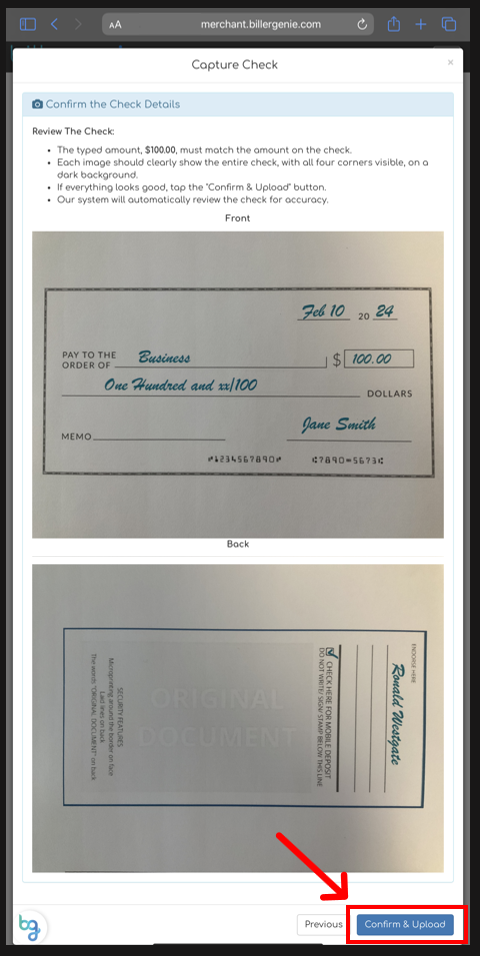
Once you are satisfied with both images, click Confirm & Upload
Repeat the process until all checks are scanned.
If using this feature from a computer, the only supported file formats are: JPEG and TIF
When you are ready to deposit the scanned checks, follow this guide: Processing a Check