
With Biller Genie's Surcharging option, your invoices display your original price — exactly as you created it in your accounting software. The surcharge is only disclosed and added at checkout if the customer chooses to pay by credit card. Debit and prepaid cards are protected from the surcharge automatically. This article walks through the six points where the customer sees the surcharge during a typical payment, so you know exactly what they'll experience.
For the Dual Pricing equivalent (which is a different flow — both prices shown from the start, no popup), see What Your Customer Sees: The Dual Pricing Checkout Experience.
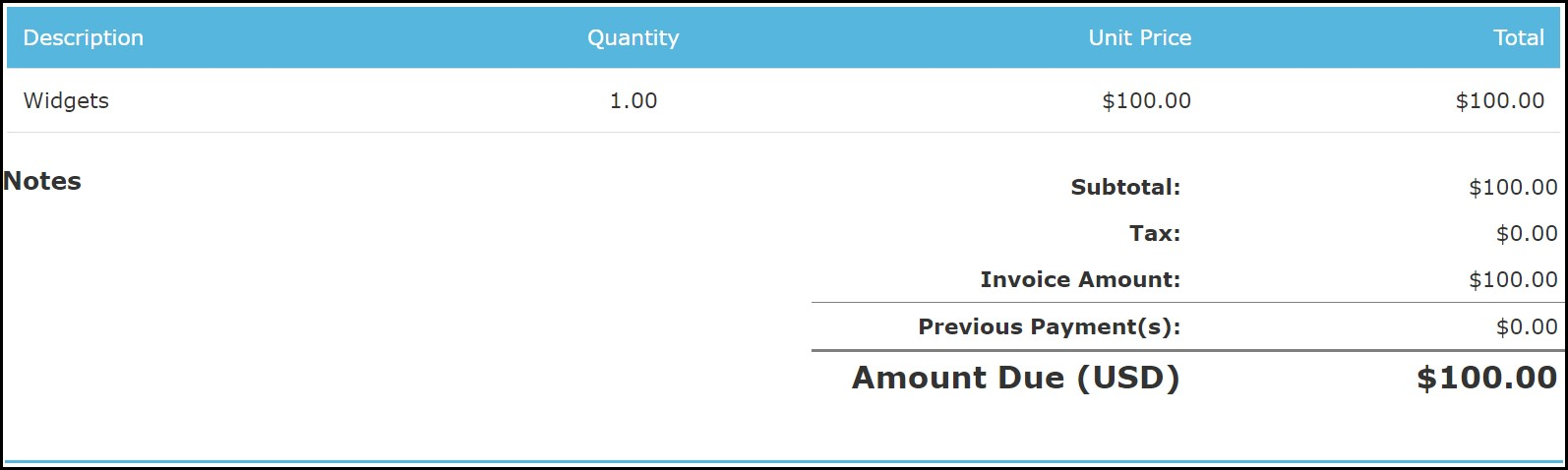
Step 1: The invoice syncs in from your accounting software
You create the invoice in your accounting software at your normal price. Biller Genie syncs it in and presents it to your customer at exactly that price — no surcharge is applied or visible at this point.
Step 2: The invoice is shown at the original total
When the customer opens the invoice, they see your price — the same number you entered in your accounting software. No surcharge column, no second price, nothing extra. This is intentional: Surcharging discloses the fee at the point of payment selection, not on the invoice itself.
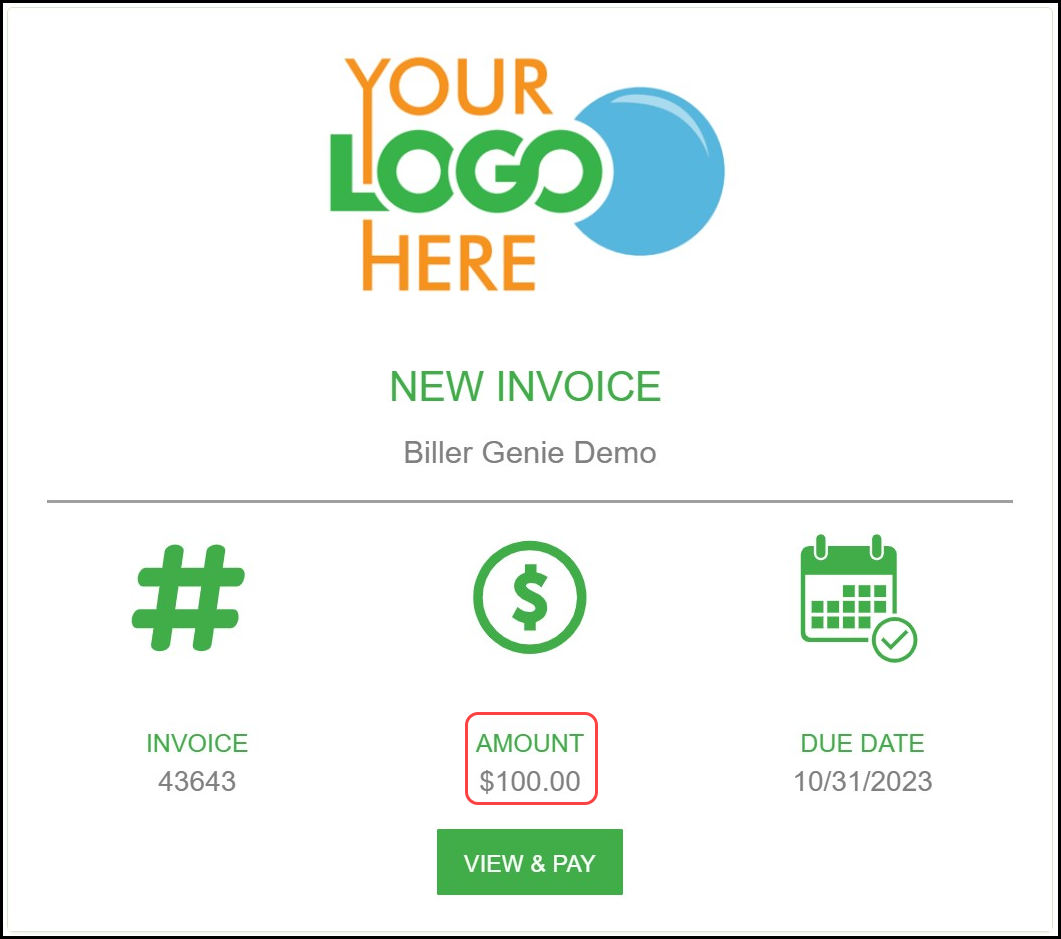
Step 3: The "New Invoice" email goes out at the original total
The email sent by Invoice Messenger shows the same total as the accounting software — your original price. No surcharge yet.
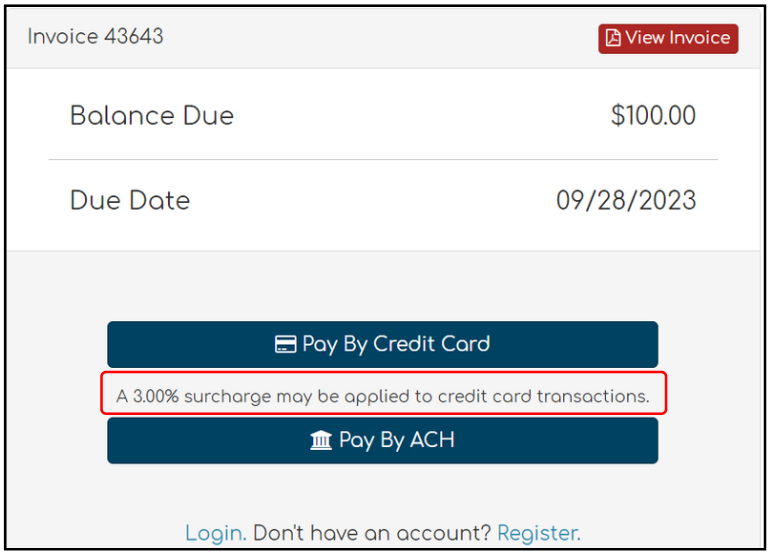
Step 4: The payment summary screen flags the credit-card surcharge possibility
When the customer clicks through to pay, the payment summary screen shows the original total alongside the available payment methods. The credit-card option includes language indicating "an additional fee may apply for credit card transactions." The ACH option (if available) clearly indicates no additional fee.
Step 5: A popup at checkout discloses the surcharge before charging
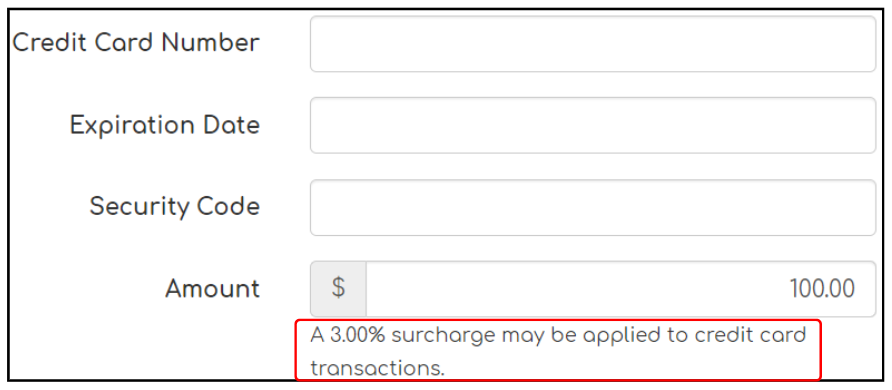
If the customer chooses to pay by credit card, a popup appears at the card checkout screen that clearly outlines the additional surcharge amount and the new total they'll be charged. The popup gives them two choices:
- Go back and switch to a non-surcharged payment method (debit, ACH, or cash, depending on what's available) to avoid the fee.
- Accept the surcharge and proceed to pay the new total.
This explicit disclosure-and-acceptance step is what makes Biller Genie's Surcharging implementation card-brand compliant. The customer must affirmatively accept the surcharge before the card can be charged.

Step 6: The receipt shows the surcharge as a separate line
The emailed card payment receipt itemizes the surcharge as its own line — separate from the invoice subtotal. The customer can see exactly what they paid and what was added for the card transaction. Customers who paid by ACH or another non-surcharged method get a receipt that just shows the invoice total, no surcharge line.

How BIN validation protects debit and prepaid cards
Card-brand rules don't allow surcharging on debit cards or prepaid cards — only on traditional credit cards. Biller Genie enforces this automatically by checking the BIN (Bank Identification Number) on each card before applying the surcharge.
The BIN is the first 6 to 8 digits of the card number — those digits identify which bank issued the card and what type of card it is (credit, debit, or prepaid). When a customer enters their card at checkout, Biller Genie looks up the BIN and either applies the surcharge (credit card) or skips it (debit or prepaid).
This is the protection that lets you run Surcharging on your account without accidentally surcharging a debit-card customer (which would be a compliance violation). You don't need to do anything to enable it — it runs on every Surcharging transaction automatically.