
This article walks you through enabling and configuring Technology Fees on your Biller Genie account. Before you start, make sure you've reviewed the differences between Surcharging and Dual Pricing — they configure on the same page, but they behave very differently for your customers. See Technology Fees: Dual Pricing and Surcharging at a Glance if you're not sure which to choose.
Before you turn it on
- Decide on Surcharging or Dual Pricing. The choice affects what your customer sees, what caps apply, and which states you can operate in.
- Confirm compliance. Both options were designed to be card-brand compliant, but state laws and your acquirer's rules can change. Check with your merchant processor or legal team before going live.
- If you're going with Surcharging, notify your acquirer at least 30 days before turning it on. This is a card-brand requirement, not a Biller Genie one.
Where to find it
From your Biller Genie dashboard, go to Add-Ons > Technology Fees. This is where you'll switch the feature on, pick the mode (Surcharging or Dual Pricing), set the percentage, and configure how the fee syncs to your accounting software.
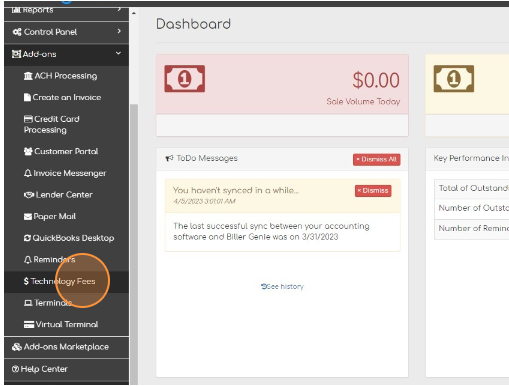
Step-by-step setup
- Toggle Technology Fees to "Yes." This is the master switch. Until it's on, none of the other fields apply.
- Choose the Mode. Pick either Surcharging or Dual Pricing. You can switch later, but the two modes don't run at the same time.
- Set the Fee Type. This decides how the fee gets recorded back in your accounting software. Most merchants on a connected accounting system pick Add as Sales Receipts — it follows GAAP standards and avoids sync errors on locked invoice periods. See the next section.
- Set the Technology Fee Amount. Only percentage is supported (no flat-dollar fees). For Surcharging, the cap is 3% (2% in Colorado). For Dual Pricing, there's no cap. See the next section for when this field is editable.
- Save. The setting goes live for every new transaction from that point forward.

If your gateway manages the surcharge amount
A handful of payment gateways handle surcharge configuration themselves — the surcharge percentage is set on the gateway side, not in Biller Genie. If your account uses one of these gateways and Surcharging is enabled:
- The Technology Fee Amount field on the Biller Genie page will appear as read-only. You'll see a tooltip that says "Surcharging is managed by the gateway."
- An alert banner at the top of the page reads "IMPORTANT: Surcharging is managed by your gateway. Settings must be changed at the gateway level."
- The percentage value syncs in from the gateway automatically and updates if the gateway's configuration changes. You don't need to manually update Biller Genie.
- To change the percentage, change it on the gateway side. Biller Genie picks up the change on its next sync.
If the Amount field looks frozen and you're not sure why, this is probably the reason. Reach out to your processor or to Biller Genie support if you need to confirm which side controls your surcharge.
Fee Type: Sales Receipts vs Line Items
This setting controls how the Technology Fee appears in your accounting software when a card payment syncs over:
- Add as Sales Receipts (recommended for most merchants on a connected accounting system) — the fee posts as a separate sales receipt in the month the payment was collected. This follows GAAP standards and won't conflict with locked invoice periods.
- Add as Line Items — the fee posts as an added line on the original invoice. If your accounting software locks invoices after specific periods (a common GAAP practice), Biller Genie may not be able to sync the line item and you'll see a sync error.
See Reconciling Technology Fees in Your Accounting Software for the full mapping of how each field flows through under each mode.
Item name and description (Surcharge vs Dual Pricing)
When Biller Genie writes the Technology Fee to your accounting software, it needs an item name and description for the line. The two modes handle this differently:
- Surcharging mode: The item name and description are fixed at "Surcharge" and cannot be customized. This is a card-brand compliance requirement — the term that appears on the customer's transaction has to be unambiguous. Even if you rename the item in your accounting software, Biller Genie will reset it to "Surcharge" on the next sync.
- Dual Pricing mode: The item name and description can be customized for how the fee syncs into your accounting software. The field on this page is read-only because Dual Pricing item naming lives in your Items management area — not on the Technology Fees page. Edit the item there to control how it appears in your accounting software's chart of accounts and on customer receipts.
Cash Invoice Price Labels (Dual Pricing only)
With Dual Pricing, your invoices show two prices side-by-side: a card price and a "cash" price. You control what that second label says, depending on whether your account accepts ACH.
Two settings on the Technology Fees page handle this:
- Cash label for customers who can pay via ACH: The label used when the customer has an ACH option available. Defaults to ACH. You can also choose Cash, Check, or Other.
- Cash label for customers who can NOT pay via ACH: The label used when the customer doesn't have an ACH option. Defaults to Cash. Same set of choices: ACH, Cash, Check, or Other.
Pick the label that matches how you'd describe the payment method to your customers. A merchant who primarily takes checks might set the ACH-disabled label to Check so the customer's invoice reads "Card Price / Check Price" instead of "Card Price / Cash Price."
Why Technology Fees are an all-or-nothing setting
Once Technology Fees are turned on, they apply to every transaction processed through your account. There is no per-customer or per-invoice exemption — and this is by design.
Card-brand rules (Visa and Mastercard, primarily) require that any fee tied to payment method be applied consistently and transparently across all transactions. Showing one customer a fee and not another, or charging it on some invoices and not others, can be a compliance violation that puts your processing account at risk.
By keeping Technology Fees as a single global setting, Biller Genie makes sure:
- Every customer sees the fee at the same point in the payment flow (invoice, payment screen, receipt).
- The customer can always choose a non-card payment method to avoid the fee.
- The disclosure language and the amount are identical across every transaction, which is what card brands require.
If you absolutely need to exempt one transaction
If a one-off situation comes up where you don't want a Technology Fee on a specific transaction, your options are:
- Have the customer pay by a non-card method (ACH or cash/check, depending on what your account accepts) — neither method triggers the fee.
- Process the payment outside Biller Genie and record it as a manual payment against the invoice.
Neither option is a Biller Genie feature exemption — they're just ways to route the payment so the fee doesn't apply. Do not ask Support to manually exempt a specific customer or invoice while leaving the global Technology Fees toggle on; doing so could violate your processor's surcharging agreement.