
Sales Receipts are only displayed when an accounting software is connected.
While Biller Genie treats Sales Receipts separate from invoices, QuickBooks can treat them as the same.
Sales receipts can be generated after an unattached transaction to manually account for them in Biller Genie. See Attach Invoice to Transaction for more information.
Sales receipts are the preferred method for syncing back Technology Fees when collected at the time an invoice is paid. This will show the Technology Fee as the sole item on the sales receipt. See Setting up Technology Fees for more information.
Step 1 - Find Desired Customer
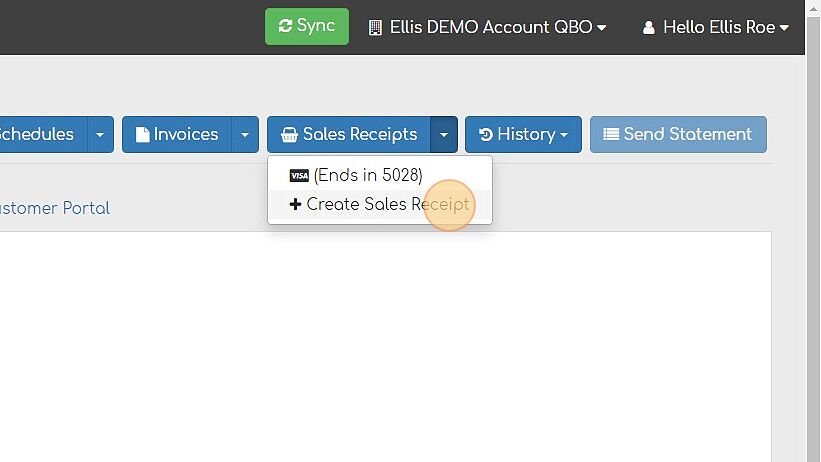
Navigate to Customers find the desired customer to create a sales receipt and select the dropdown under Sales Receipts.
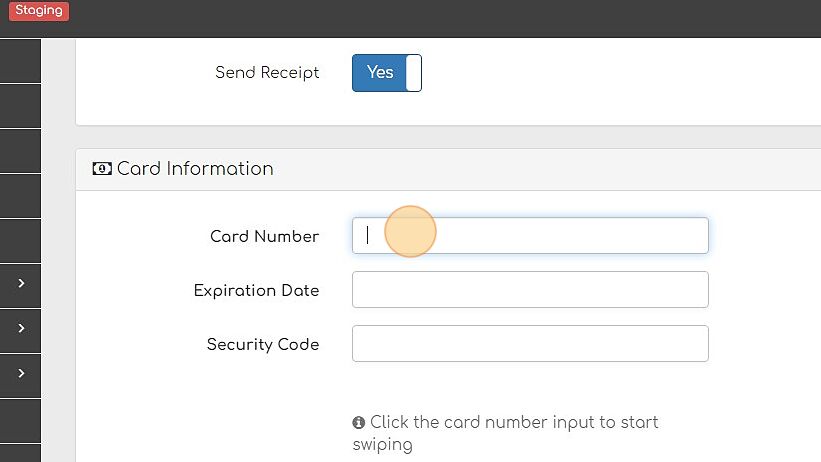
Step 2 - Add your Customers card details.
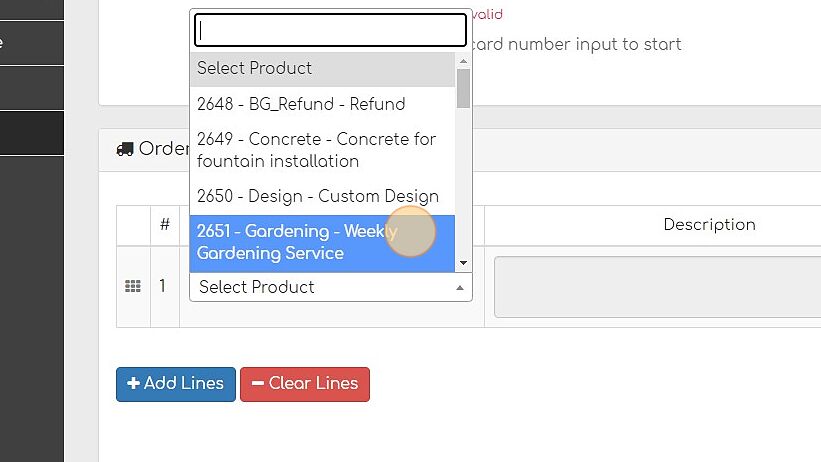
Step 3 - Add Products and Services.
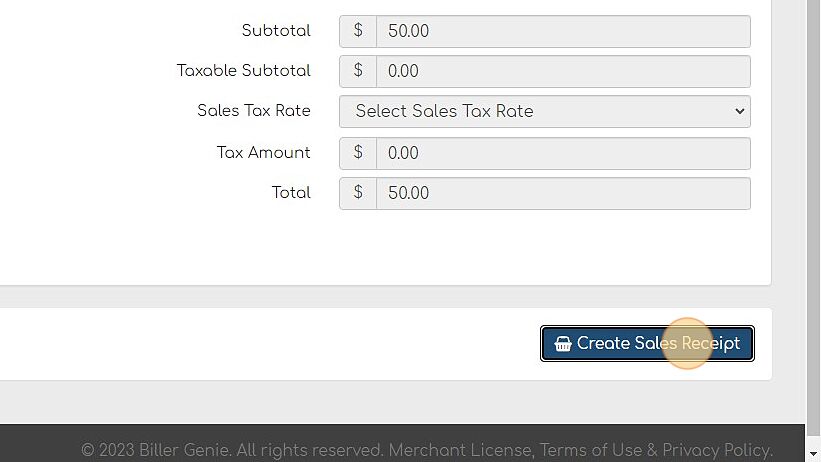
Step 4 - Create Sales Receipt.
When does the Sales Receipt Number appear?
The Sales Receipt Number fills in once the sales receipt has synced to your accounting software. Until then, it is blank.
If you use QuickBooks Desktop:
- If you create a customer and sell to them right away, the sales receipt waits until the new customer has synced to QuickBooks Desktop, then posts on the next sync.
- A Technology Fee or Surcharge line always uses the fee item you mapped in Biller Genie. If that item is new, Biller Genie adds it to QuickBooks Desktop using your own sales tax codes, and the receipt posts on a later sync.
- Special characters in a line description, such as curly quotes, long dashes, ½ or ®, appear in QuickBooks as plain text (for example, straight quotes, a hyphen, 1/2 or (R)).
- If a sales receipt still has no number after its customer has synced and another sync has run, contact Support.