
Biller Genie has Attach and Detach actions on every transaction. They let you manually associate a one-time payment with an invoice, or disassociate one. Both are last-resort tools. The accounting-software sync is the right place to fix invoice/payment mismatches in almost every case — this article exists for the small number of situations where direct attach/detach is genuinely the right move, and to steer you away from it when it isn't.
The right use case for Attach: take a deposit, apply it later
The cleanest use case for attaching a transaction to an invoice is the deposit-then-invoice workflow: you collect a payment from a customer (a deposit, retainer, or upfront amount) before the corresponding invoice exists. Biller Genie records the payment as a standalone transaction. Later, when the work is done and the invoice is generated in your accounting software, the payment is sitting there unattached — and you can use the Attach action to link the two.
How to take the initial deposit:
- Virtual Terminal — process the deposit directly through Biller Genie's Virtual Terminal for an in-person or phone-taken payment.
- Hosted Payment Page — send the customer a one-time payment link to capture the deposit without requiring an invoice.
Either path produces a standalone transaction in Biller Genie. When the invoice eventually shows up (synced from your accounting software, or created manually), open the transaction and click Attach Invoice to associate the two.
When NOT to use Attach
If a payment came in and the invoice it should have paid is showing open, the sync flow is almost always the right place to fix that — not direct Attach. Check these first:
- Is the payment stuck on the Payment Sync Queue with an error? Resolve that error and Biller Genie will apply the payment correctly on its own.
- Is the payment in pending status waiting for ACH/check settlement? Wait — it'll apply automatically when funded.
- Was the payment applied to a different invoice in your accounting software? Fix it there — Detach in Biller Genie won't help if the source-of-truth in QBO/Xero has the wrong association.
Direct Attach should be the fallback only when sync diagnosis confirms the payment will never auto-match because no enqueued sync exists.
The narrow use case for Detach
Detach is even more limited than Attach. The one legitimate scenario: you need to perform an action on a transaction or invoice that Biller Genie won't let you do because it's currently associated with another record, and you intend to record the resulting entry in your accounting software manually.
For example: a refund flow is blocked because the payment is still attached to a partially paid invoice, and the cleanest path is to detach the payment, perform the refund, and then manually record the resulting adjustment in your accounting software so both systems reflect the right state. Or: a payment was attached to a now-deleted invoice and you need to free it up to handle the situation outside the normal sync.
If your situation is just "this payment is on the wrong invoice," don't detach in Biller Genie — fix it in your accounting software (delete the wrong payment record, apply it to the right invoice, let sync propagate). Detach-then-re-attach inside Biller Genie creates a window where the two systems disagree, and the sync may or may not reconcile it cleanly.
How to attach a transaction
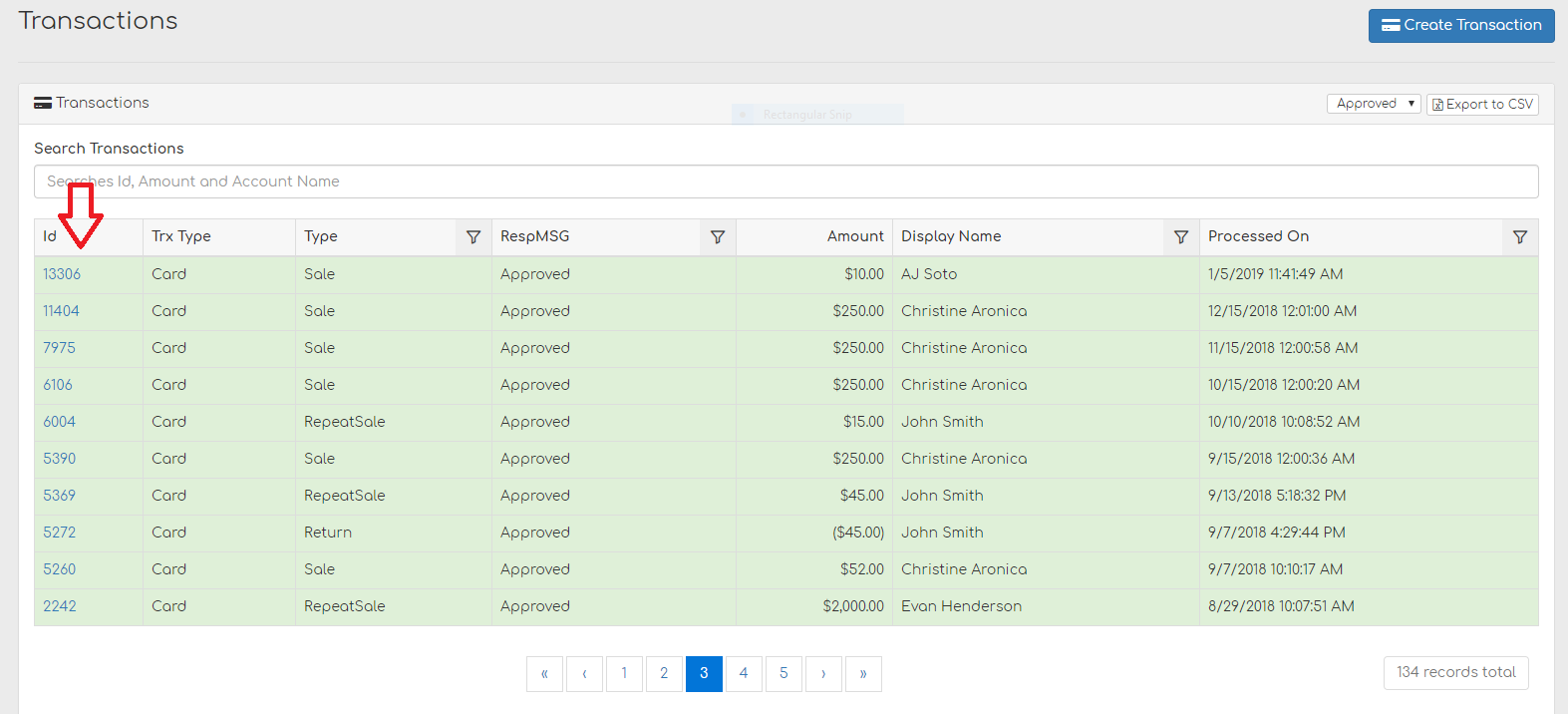
Step 1. Open the transaction
Go to Reports > All Transactions and search for your transaction ID.
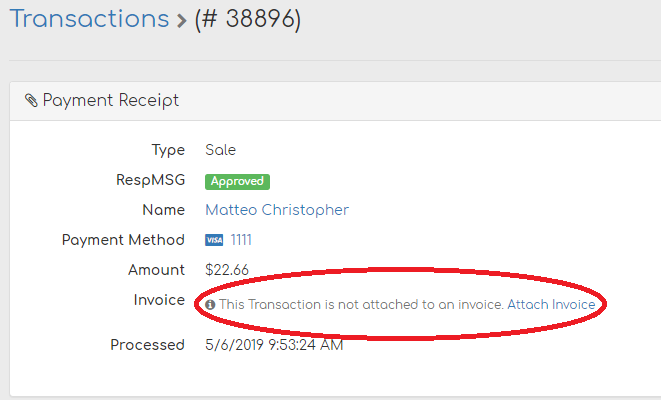
Step 2. Click Attach Invoice
Once found, Biller Genie shows that the transaction has no associated invoice and offers you an option to attach it. Click Attach Invoice.
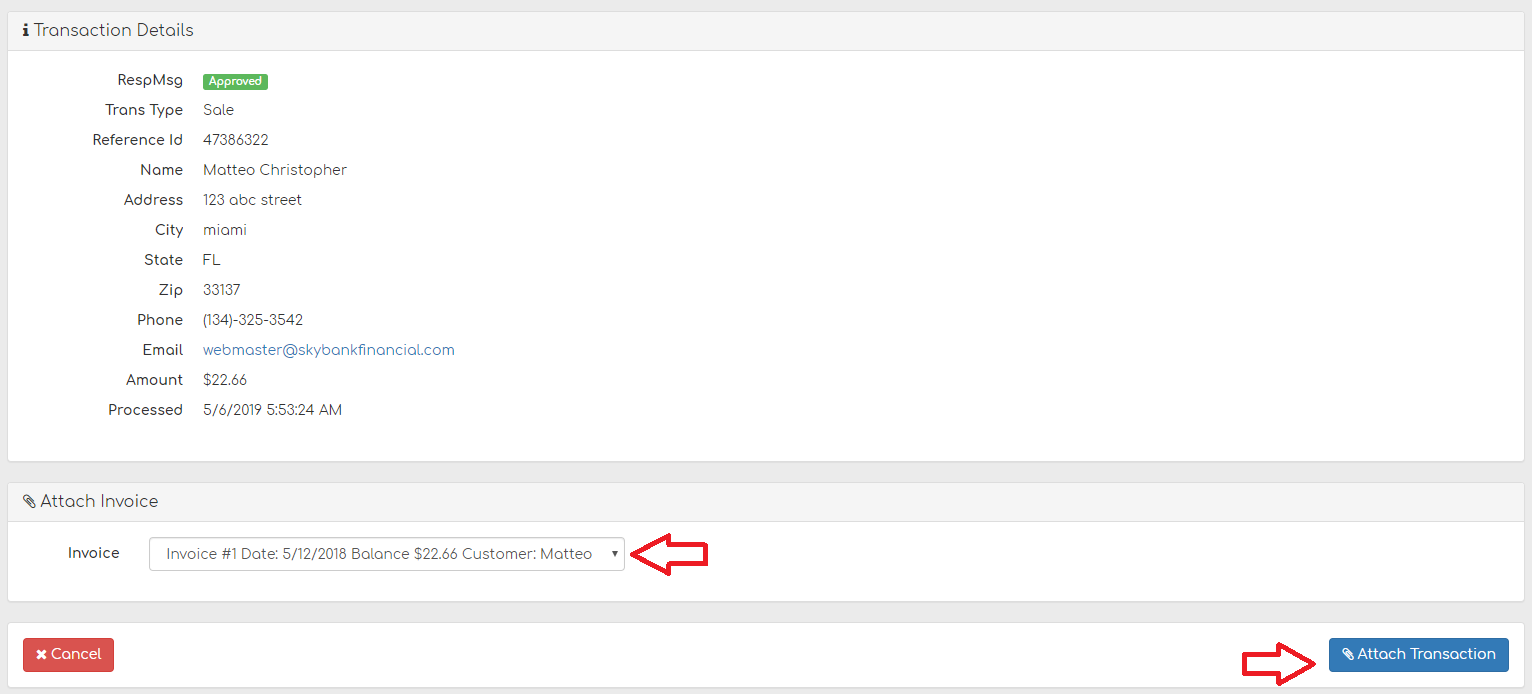
Step 3. Pick the invoice and confirm
Select the correct invoice from the drop-down list and click Attach Transaction. Biller Genie validates that the transaction amount can be applied to the invoice (it must be less than or equal to the open balance unless partial payments are allowed at exactly the open balance) and then enqueues the payment to push back to your accounting software via the Payment Sync Queue.
How to detach a transaction
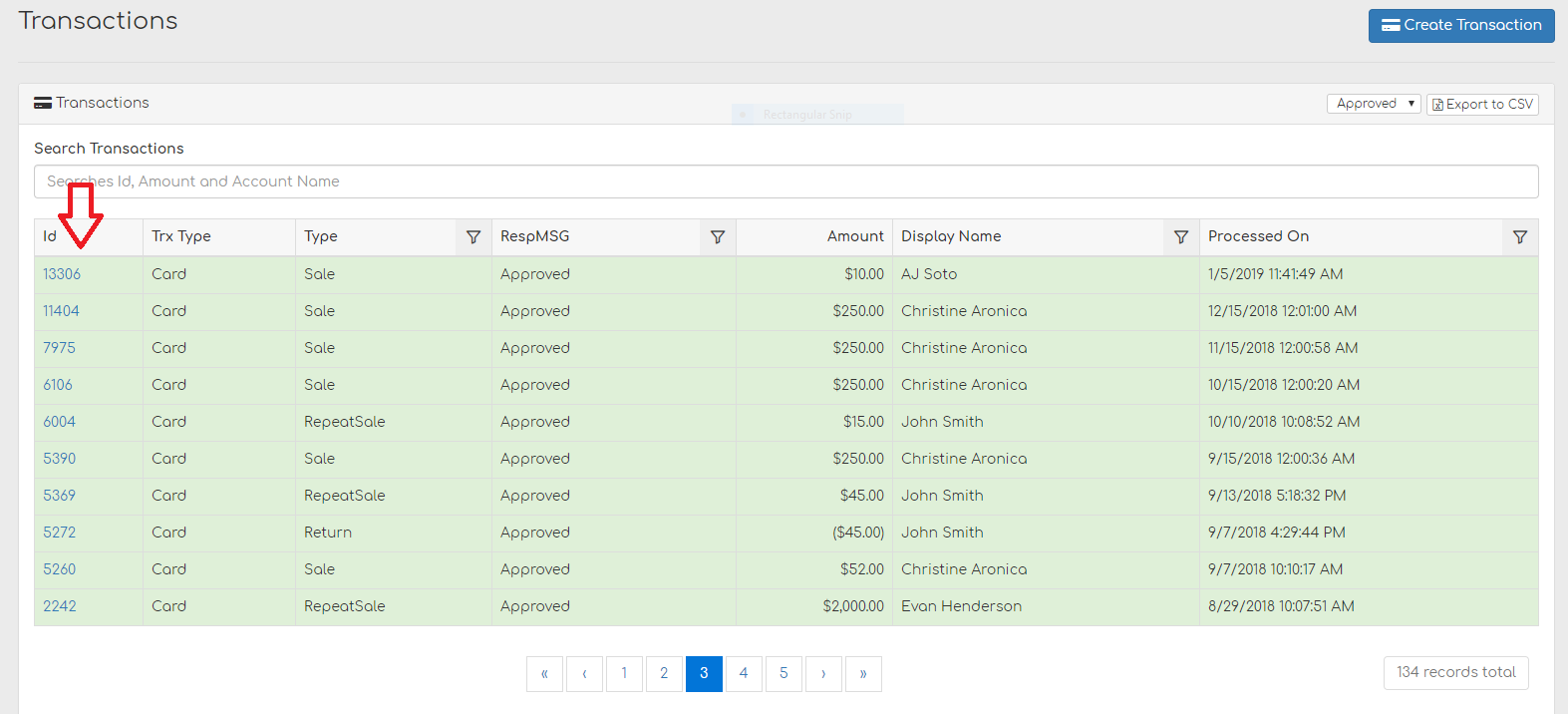
Step 1. Open the transaction
Go to Reports > All Transactions and search for your transaction ID.
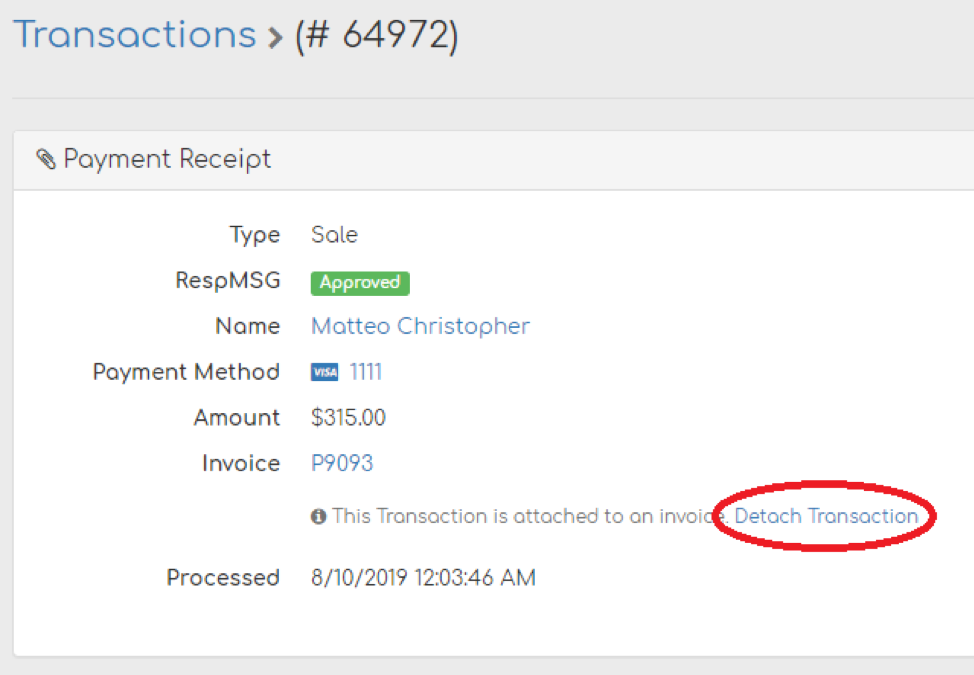
Step 2. Click Detach Transaction
On the transaction record, click Detach Transaction. The invoice it was attached to flips back to open, the transaction is now unattached, and Biller Genie reverts the payment from the invoice's history. Remember: Detach in Biller Genie does not undo a payment that was already pushed to your accounting software. You'll need to handle that reversal manually in QBO/Xero/QBD.
Guardrails Biller Genie enforces
- Same merchant only — you can't attach a transaction from another merchant account.
- Amount validation — the transaction amount can't exceed the invoice's remaining balance (Biller Genie subtracts any pending un-funded payments already attached when checking).
- Funded-only for non-ACH — non-ACH payments must be funded before they can be attached. ACH payments can be attached while pending; rejected or voided ACH are blocked.
- No customer-match check — Biller Genie does NOT enforce that the transaction's customer matches the invoice's customer. You can technically attach Customer A's payment to Customer B's invoice. Be careful — this isn't a feature, it's a missing guardrail.
- Bulk Pay restriction — transactions that are part of a Bulk Pay group cannot be detached individually.
- Payment Plan restriction — payments tied to a Payment Plan have separate handling and don't accept normal Attach/Detach.