
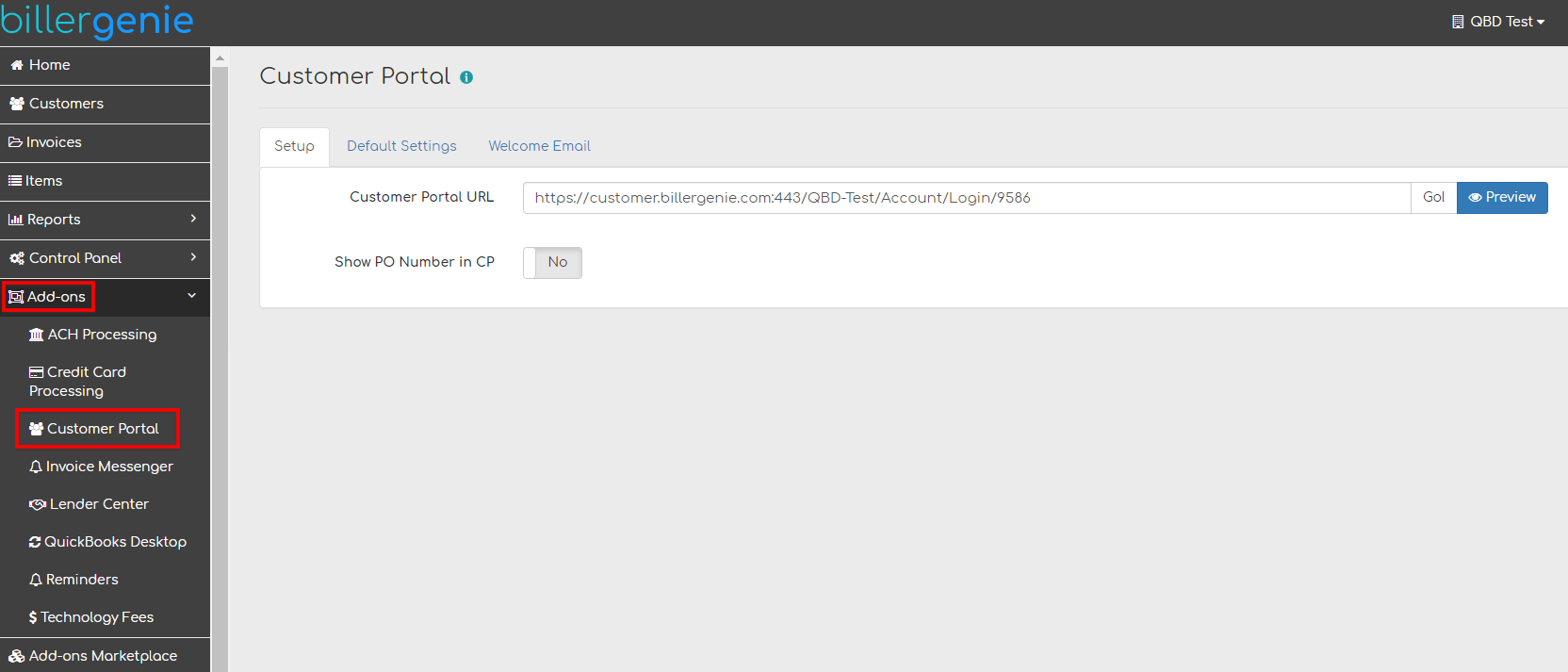
Navigate to Add-ons > Customer Portal.
If Customer Portal is not listed under Add-ons, you may need to go to the Add-ons Marketplace to install it
Send an invitation to the Customer Portal:
Go to Customers > Select the Customer > Click on the Customer Portal tab.
If the customer has never been invited, or you want to resend them the link, click Send Invitation.

The invitation email is titled Welcome to the Customer Portal. The customer will click the link in the welcome email to set their password.
A second email will be sent to confirm their email for their account, and then they can log in to the portal.
- If your customer reports not receiving the Welcome Email or the Confirmation Email, please be sure they’re checking the same email you have in their customer profile and to please check their spam folder.
Not sure who is already using the Customer Portal?
Learn how to Use Customer Reports and see who already has a Customer Portal Registration