
There are three ways to turn this setting on for your customers:
- New Customers
- Existing Customers
- Individual Customers
FOR NEW CUSTOMERS
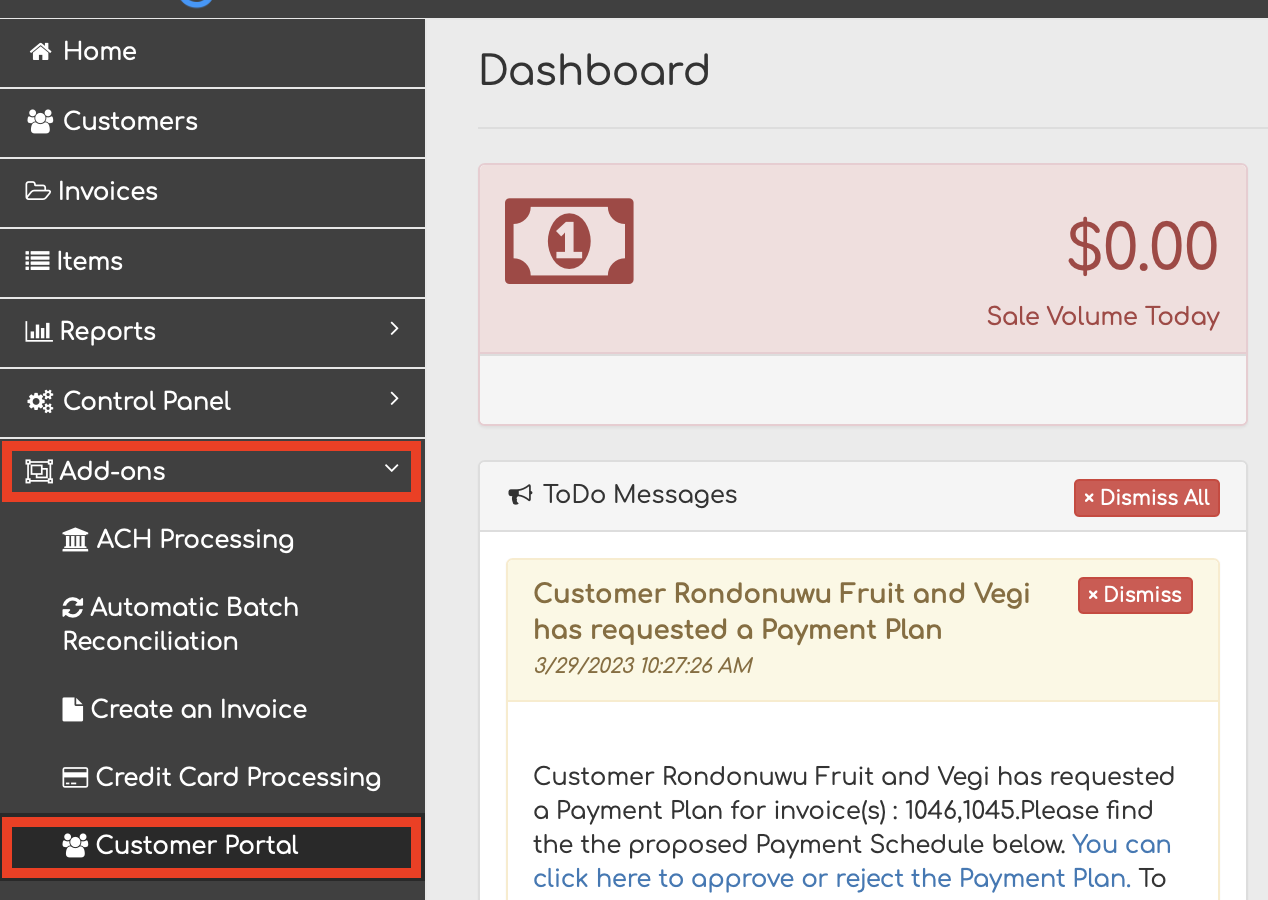
Step 1
Go to Add-Ons > Customer Portal.
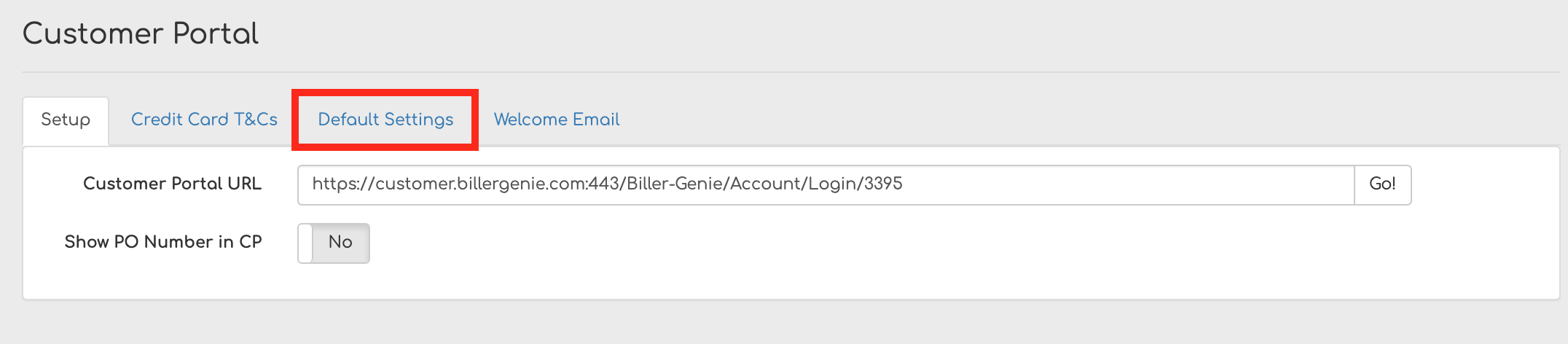
Step 2
Select the Default Settings Tab.
Step 3
Turn the toggle for Display Invoice with Parent to On.
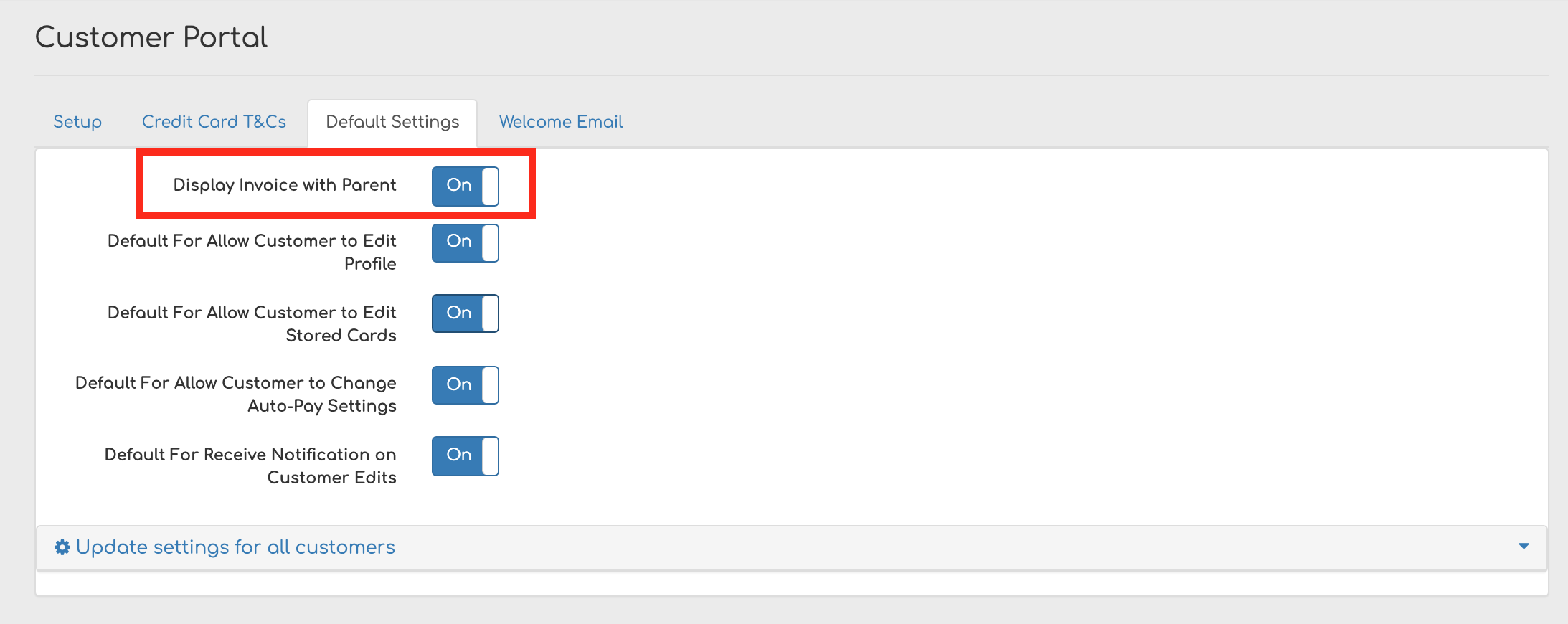
New customers synced into Biller Genie will have this option available moving forward.
FOR EXISTING CUSTOMERS
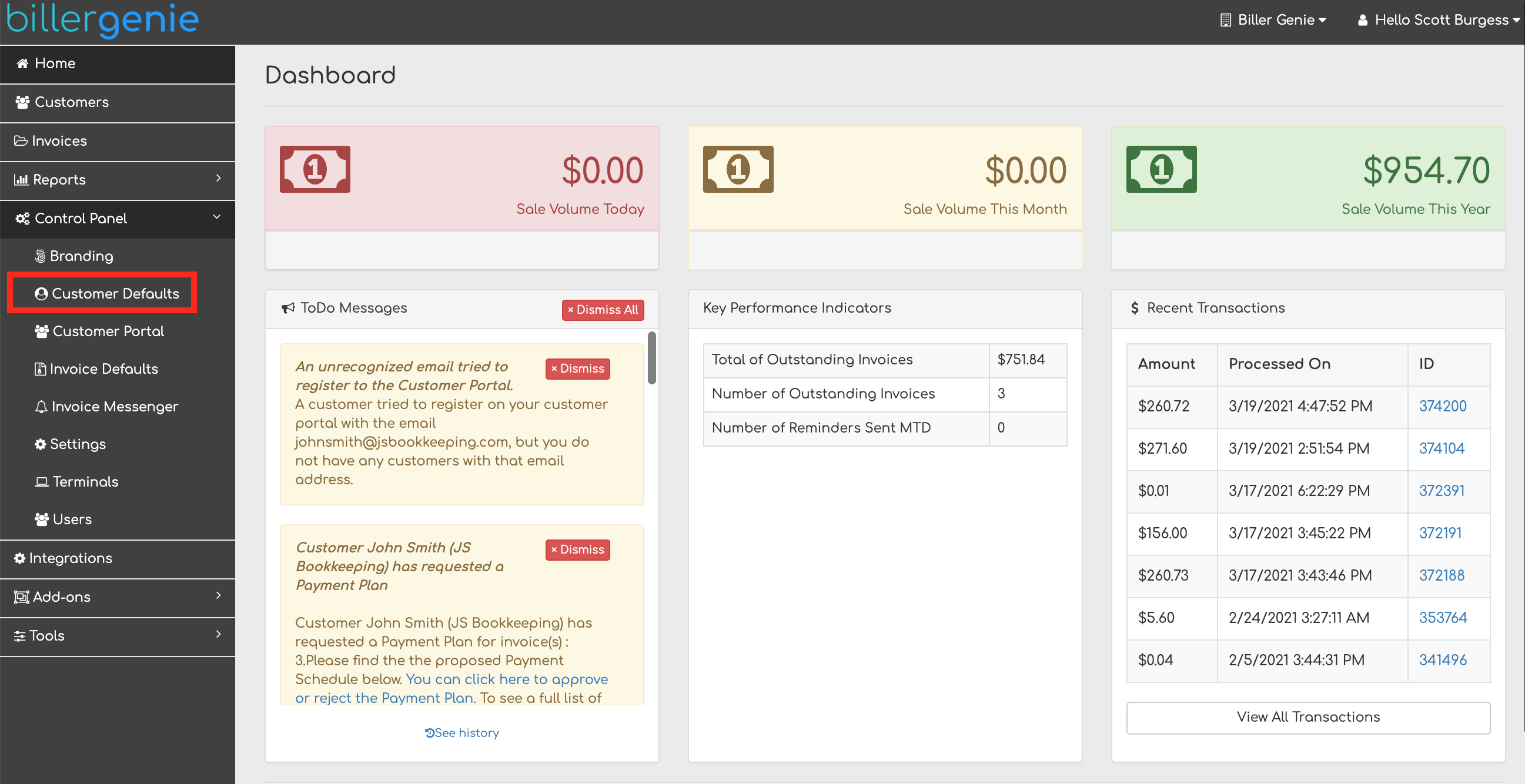
Step 1
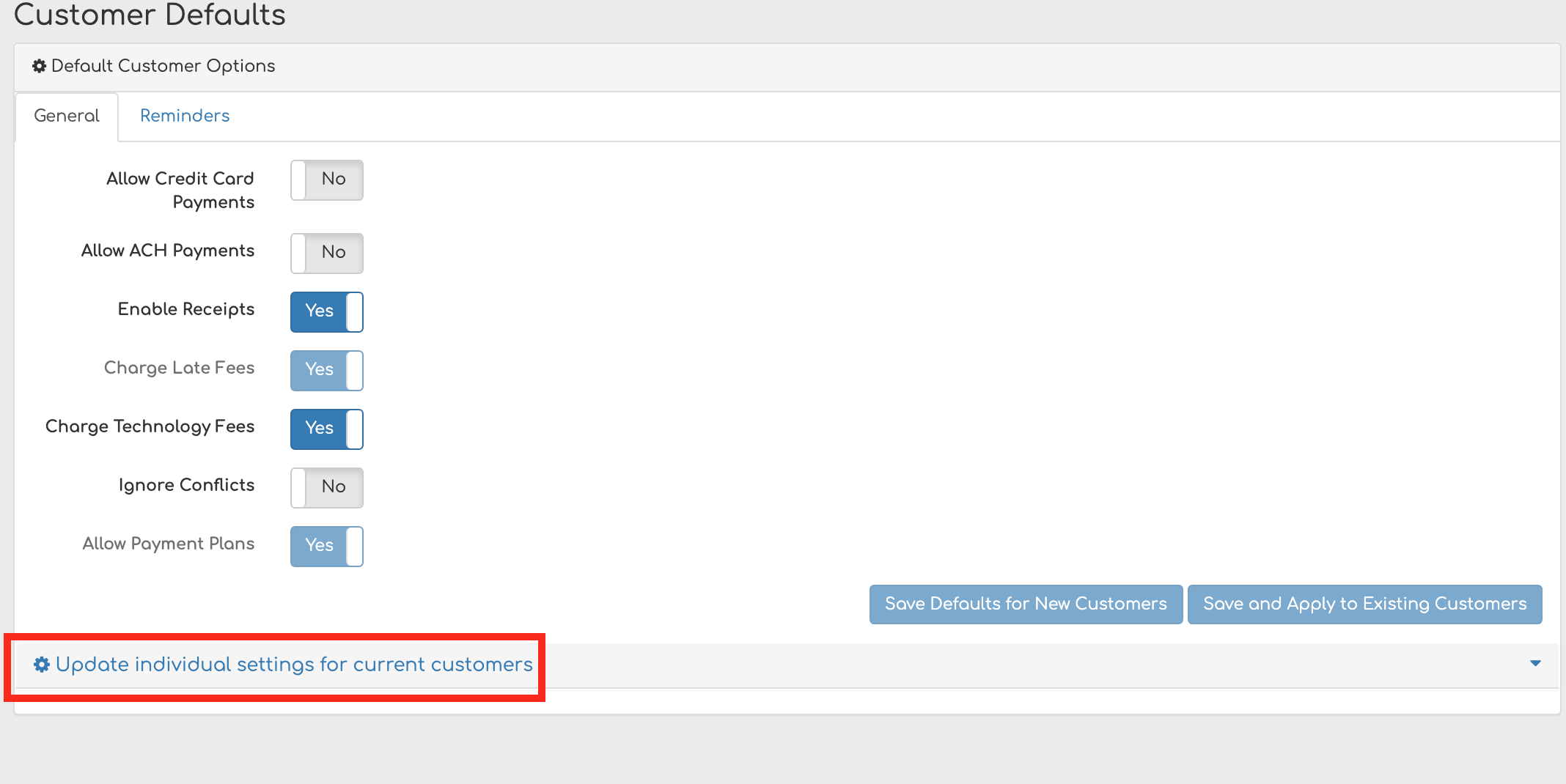
Go to Control Panel > Customer Defaults.
Step 2
Click Update individual settings for current customers.
Step 3
Select Display Invoices with Parent in Customer Portal from the drop-down menu and Select Value to Yes.

Step 4
Click Set value to all customers.

Your existing customers will now have this option available.
FOR INDIVIDUAL CUSTOMERS
To turn on this setting for individual customers moving forward, do the following:
Step 1
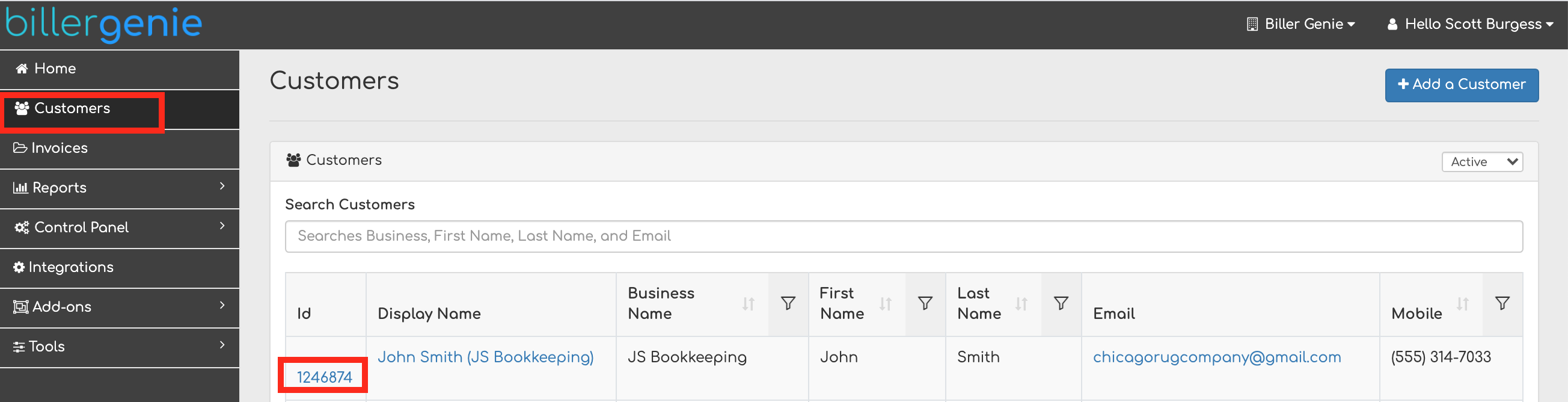
Go to Customers and select the Id of the customer you would like to allow this option for.
Step 2
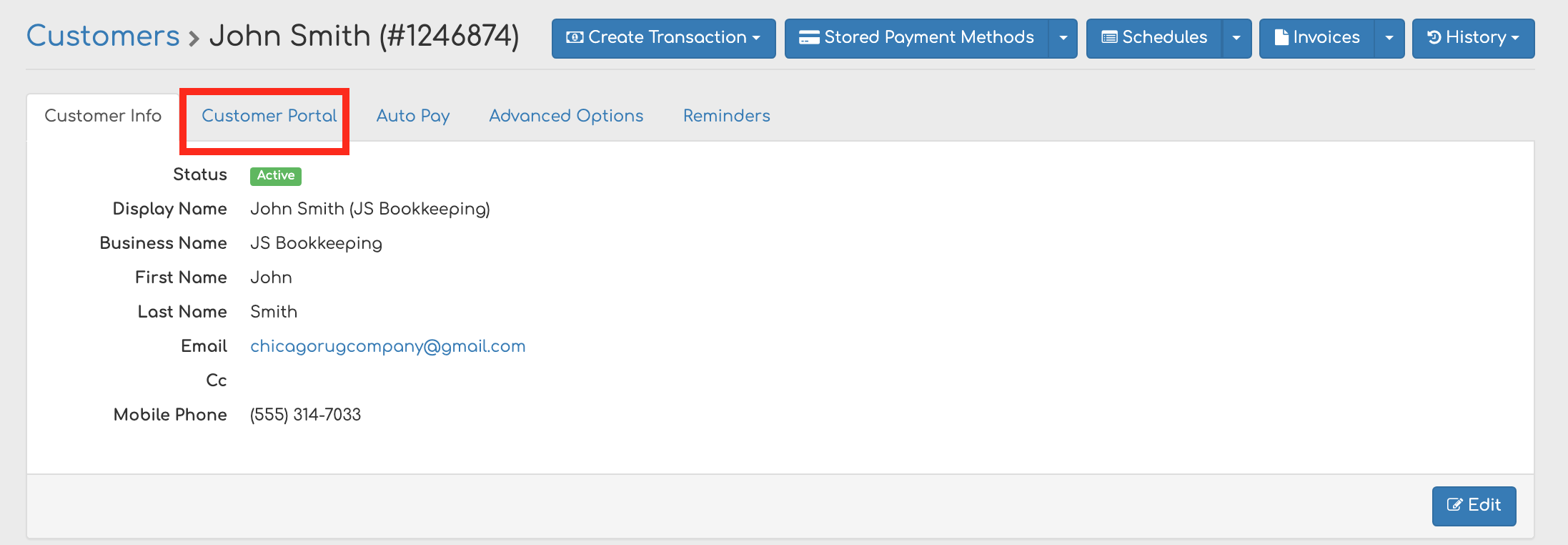
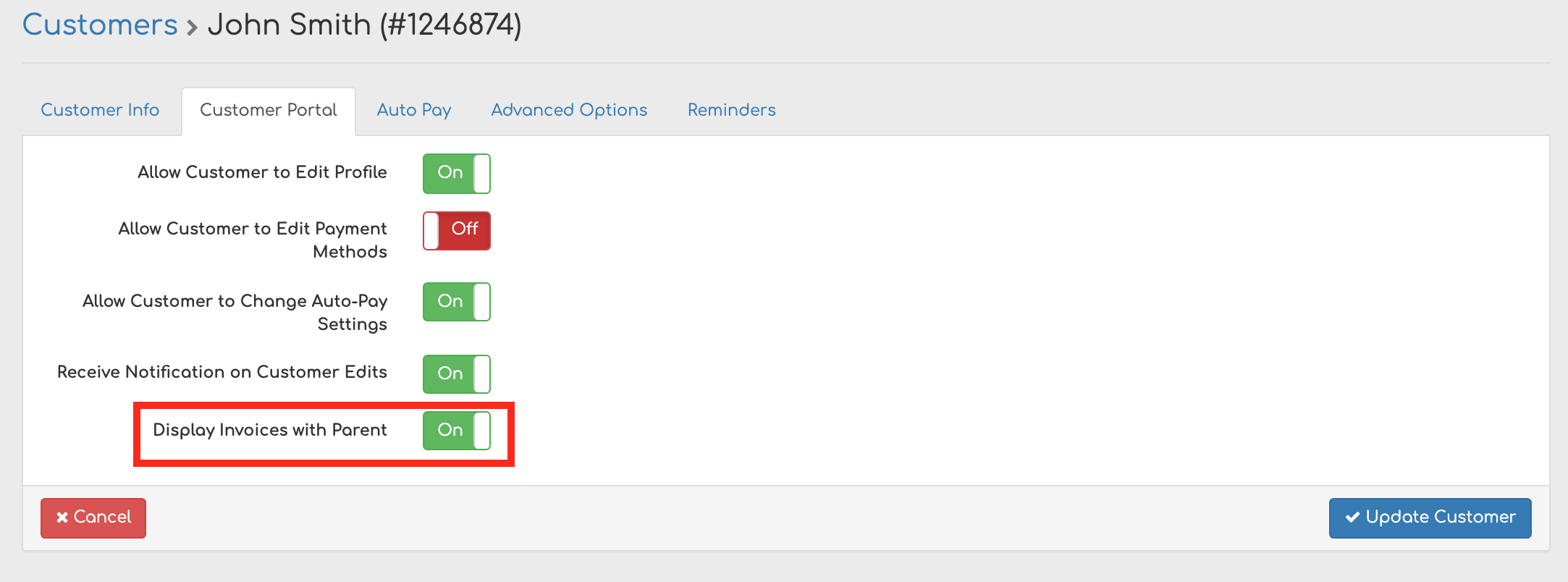
Select the Customer Portal tab in their profile
Step 3
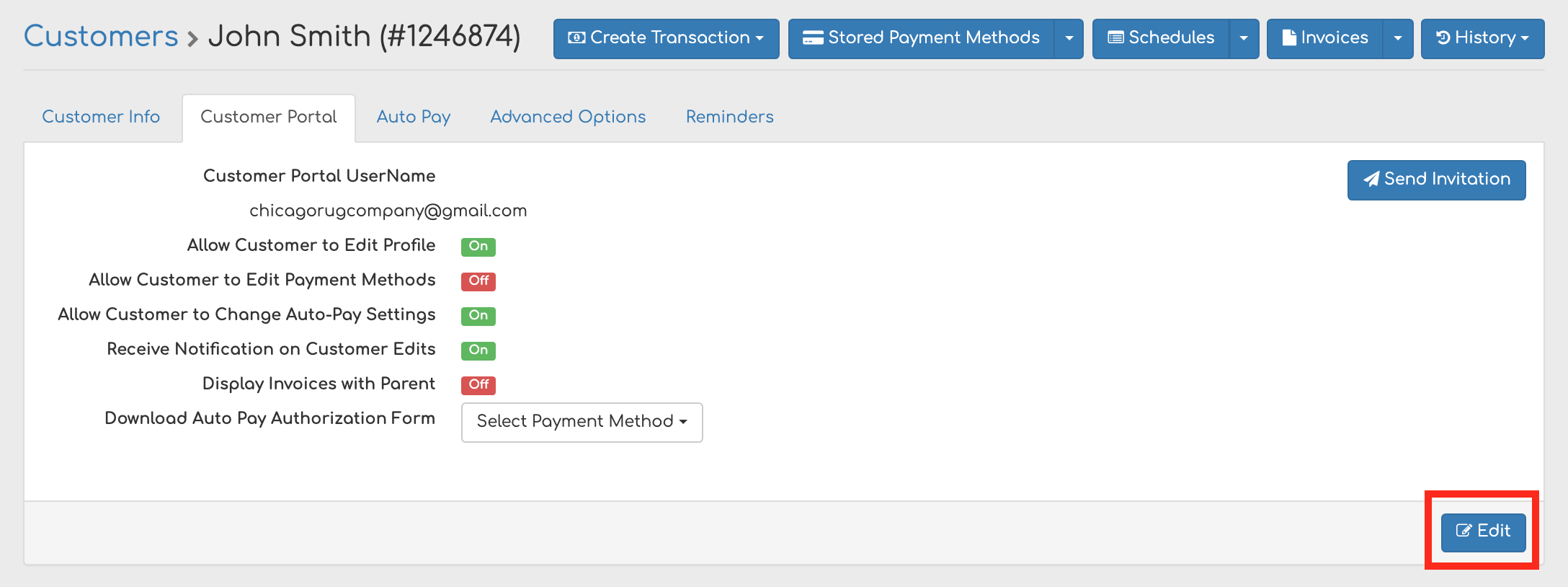
Click Edit.
Step 4
Change the Display Invoices with Parent toggle to On.
Step 5
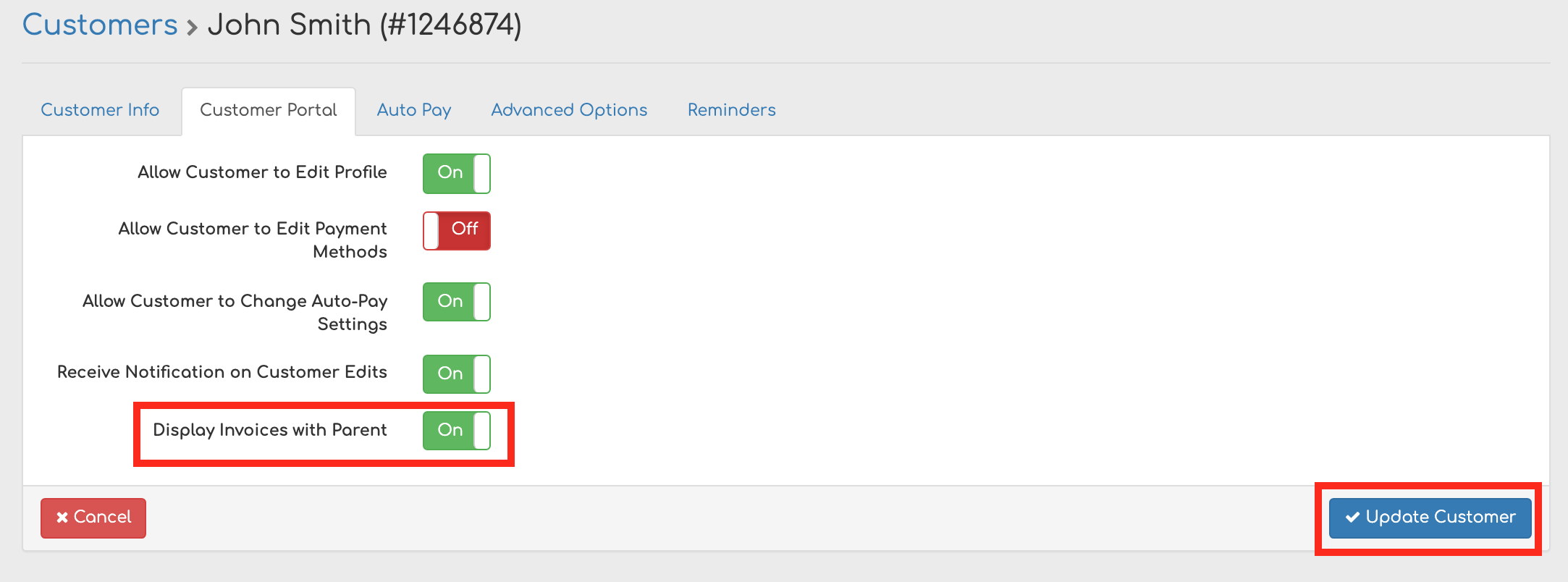
Click Update Customer.
Your customer will now have this option available.