Use Customer Reports

Easily see which customers have turned on auto pay and have signed up for the customer portal.

Written by Ellis Roe ()

Updated


Use the Customer Report to view:


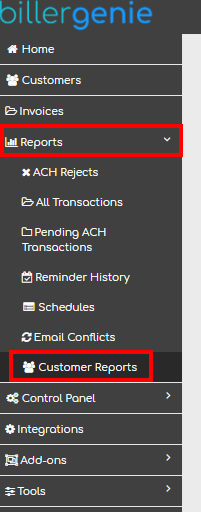
To view Customer Reports, navigate to Reports > Customer Reports.
 

Customer Portal Registrations

This is the list of customers that are registered for your Customer Portal. By clicking on the section header, you can collapse this section to more easily view the other reports.
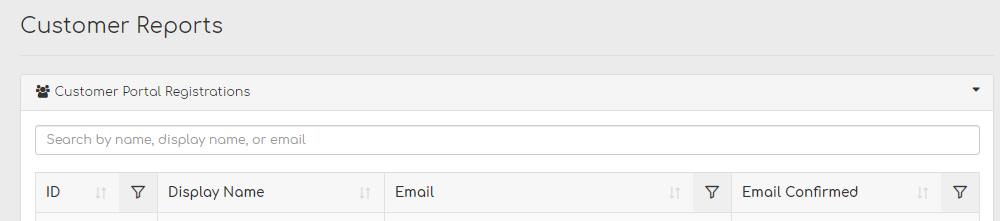
Use the search box to search by a customer’s name, display name, or email. Click the up/down arrows on the right of each column header to sort the selection.

In the Email Confirmed column, you can see the confirmation status for each customer. Remember, your customers need to confirm their email addresses before they’ll be able to use the Customer Portal.


Stored Payment Method

This report identifies all customers who have a payment method (card or ACH) stored for the purpose of enabling auto pay, or to skip having to enter a card/account number when manually paying an invoice.

For security, you will only ever see the last 4 digits of the card/account number, the full information is stored securely in your gateway. 

For cards, the report displays the expiration date, which can be used to contact customers whose card is close to expiring or has expired. Cards that are expired will be highlighted in red.

Auto-Pay is a separate report on this page but the simple Yes/No column on this report identifies payment methods that are enabled for auto-pay

To learn more, read this article about Storing Payment Methods


Auto Pay Enabled

This report identifies customers who have Auto-Pay enabled in their profile. Either you or your customer can be the

 one who enables or disables this feature. 
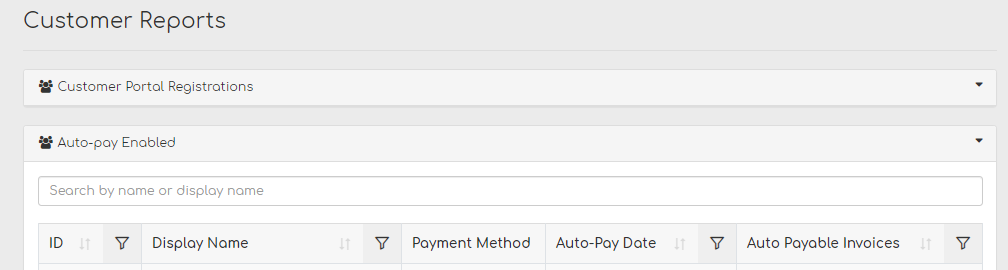
Image of customer report including columns for Display Name, Payment Method, Auto-pay Date, and Auto Payable Invoices

Column descriptions:

Payment Method: Card or ACH account that will be used when an Auto Payment is made.

Auto-Pay Date: Reflects the date setting on the customer's profile that controls when the Auto-Pay occurs. Options are Create Date, Due Date, or Invoice Date.

Auto Payable Invoices: If the customer has any open invoices, the count and amount will appear here. These will typically be invoices that have not reached their due date and the customer is set to auto pay on due date.

Go here, to learn How to Set Up Auto-Pay.