
If your merchant service provider has issued you gateway credentials, you can connect your existing payment gateway directly to your Biller Genie account. This article walks through how to connect your credit card gateway and your ACH gateway, and how to verify that payments are enabled. The process is nearly identical for both — you start in a different menu and verify a different payment-type toggle, but the connection steps are the same.
Before you start
- Have your gateway credentials ready. These come from your merchant service provider — usually API keys, terminal IDs, or other connection-specific values. They are not the same as your Biller Genie login username and password.
- Confirm with your merchant service provider which gateway your account is configured to use. The gateway options shown in Biller Genie vary by provider.
- You'll connect credit card and ACH separately if you process both. Each lives under its own Add-Ons menu and has its own credentials.
Step 1 — Navigate to the right Processing menu
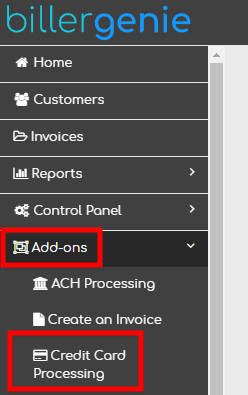
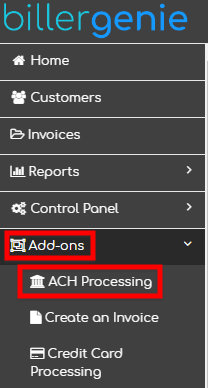
Log in to your Biller Genie account and navigate to:
- For credit card: Add-Ons > Credit Card Processing
- For ACH: Add-Ons > ACH Processing
Step 2 — Click the "I have a processor" tile
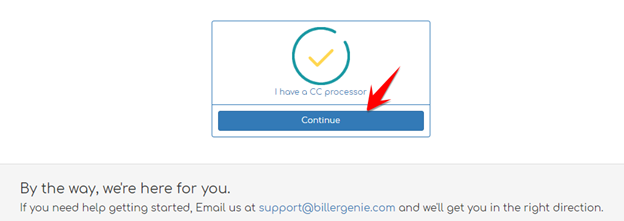
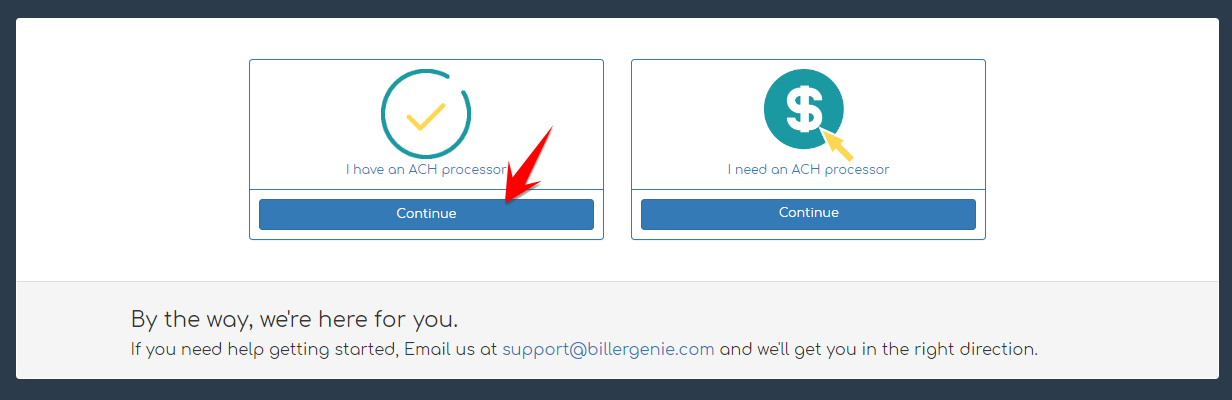
On the Processing page, click Continue under the appropriate tile:
- For credit card: "I have a CC processor"
- For ACH: "I have an ACH processor"
Step 3 — Select your gateway
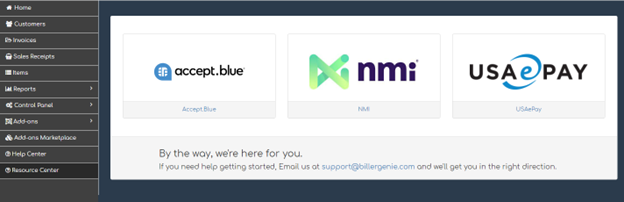
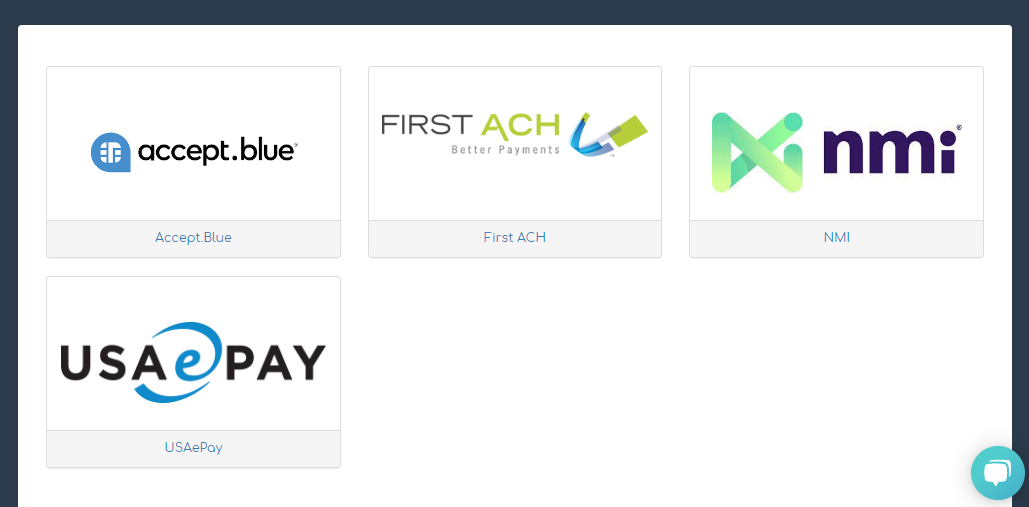
Select the gateway your merchant service provider has configured for your account. The list of gateway options varies by merchant service provider — if you're not sure which option to pick, contact your merchant service provider before proceeding.
Step 4 — Enter your credentials and click Connect
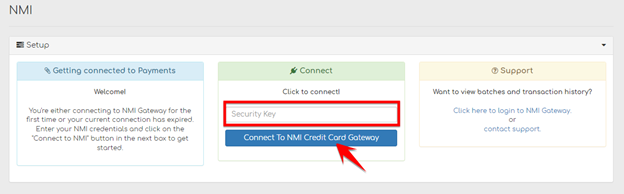
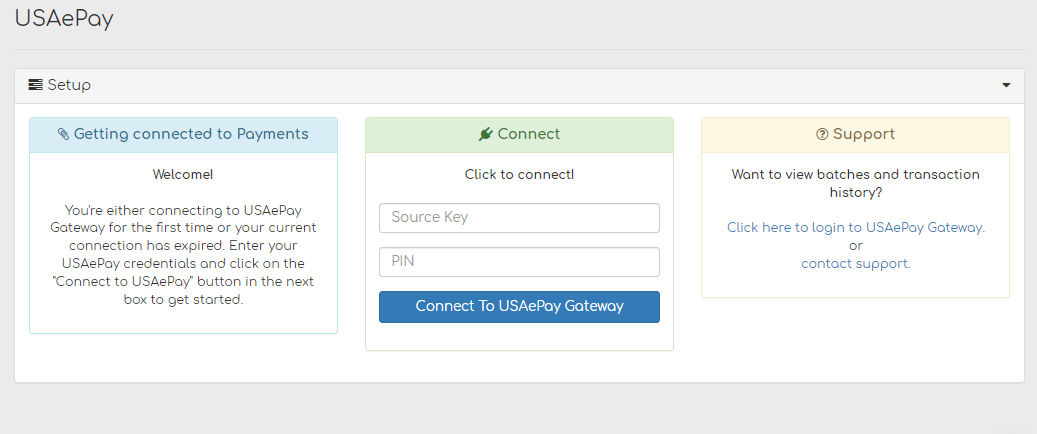
Enter the credentials provided by your merchant service provider and click Connect. Each gateway has unique credential requirements — fields like API keys, terminal IDs, account numbers, or vendor IDs.
Step 5 — Verify the payment type is enabled
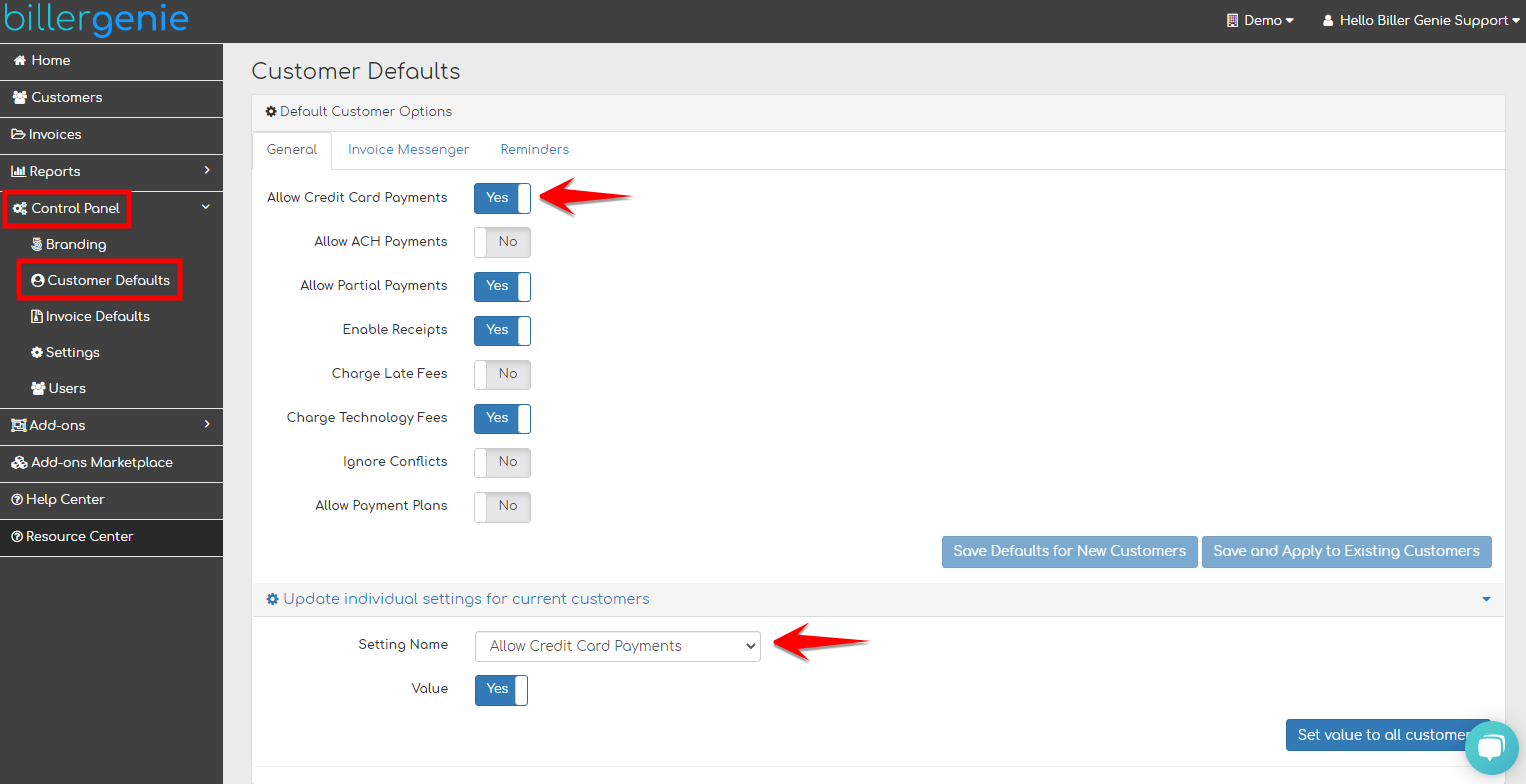
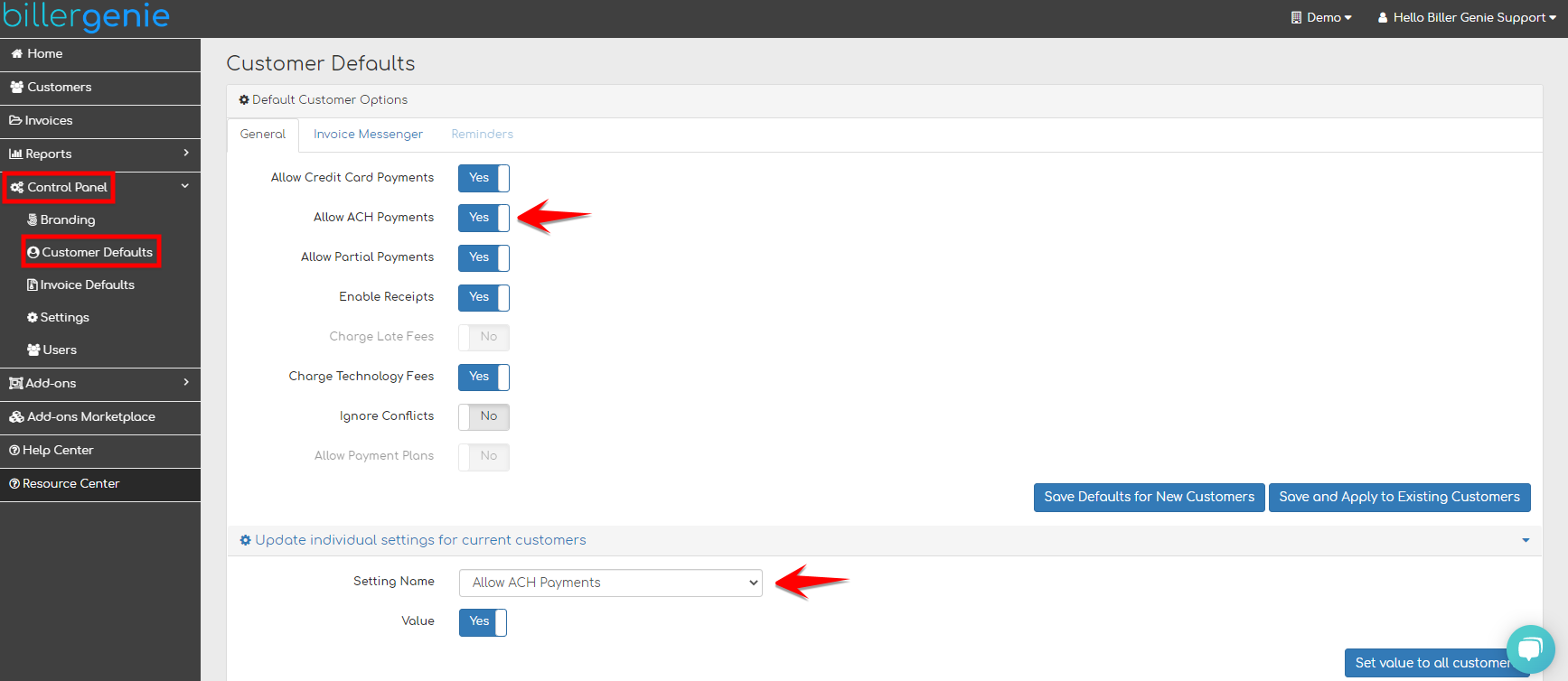
After connecting, navigate to Control Panel > Customer Defaults and confirm the right payment-type toggle is set to Yes:
- For credit card: Allow Credit Card Payments
- For ACH: Allow ACH Payments
If you process both, set both toggles to Yes.
Supported gateways and processors
Biller Genie supports a range of credit card and ACH gateways. The specific gateway you'll connect depends on the merchant service provider that issued your credentials.
- Credit card gateways: Sola, Fortis, NMI, Cliq, Elavon EPG, Elavon Converge, Authorize.Net, CardPointe, USA ePay, MX Merchant, Payroc, Bank of America, TransIT, AcceptBlue, and others.
- ACH gateways: Authorize.Net, ReliaFund, NMI, Sola, and others.
Feature support varies by gateway. Not every gateway supports every feature — stored cards, Apple Pay, surcharging (and whether it's BG-managed or gateway-managed), token import, third-party sales receipts, and surcharge state caps can each differ. If you're not sure whether a specific gateway supports a feature you need, contact support@billergenie.com with the gateway name and the feature you're asking about.
Adding or switching gateways. If your merchant service provider changes or you want to switch processors, contact Biller Genie support — gateway changes are handled by the team so that your stored payment methods migrate cleanly and in-flight transactions land where they should.
Still having trouble?
If you're unable to connect your gateway, contact the Biller Genie support team at support@billergenie.com and include:
- The name of the gateway you're trying to connect
- Confirmation that your credentials were provided by your merchant service provider
- Whether you're connecting credit card, ACH, or both
- Any error messages shown during connection