Progress invoicing lets you split a single estimate into multiple invoices, so you can collect partial payments as work progresses. Each invoice links back to the original estimate and gets picked up by Biller Genie for payment automatically.
Example: A $9,000 estimate can be split into three invoices of $3,000 each.
Step 1: Turn On Progress Invoicing
Enable progress invoicing in your QuickBooks Online company settings.
Go to Settings ⚙ and select Company settings.
Select the Sales tab.
In the Progress Invoicing section, select Edit ✎.
Turn on the Create multiple partial invoices from a single estimate switch.
In the “Update your invoice template?” window, select Update.
Select Save, then Done.
Step 2: Create a Progress Invoice Template
When you turn on progress invoicing, QuickBooks creates a default template. You can use the premade Airy Classic style or create a new one.
Create a New Template
Go to Settings ⚙ and select Custom form styles.
Select New style, then Invoice, to create a new invoice template. Or, to update one of your existing templates, find the template and select Edit.
Give the template a memorable name, like “Progress invoice template.”
In the Design tab, select Change up the template or Dive in with a template.
Select Edit print settings, or When in doubt, print it out.
Select the Content tab.
Select Edit ✎ on the table section of the form (the second section with Activity, Rate, and Amount).
Select Edit ✎ on the footer section of the form (the third section with Total and Balance Due).
Select Done.
Set as Your Default Template (Optional)
If you send progress invoices frequently, set this as your default template.
If you’re not there already, go back to Custom form styles.
In the Action column, select the dropdown menu ▼ next to the template. Then select Make default.
To confirm your choice, select Change template.
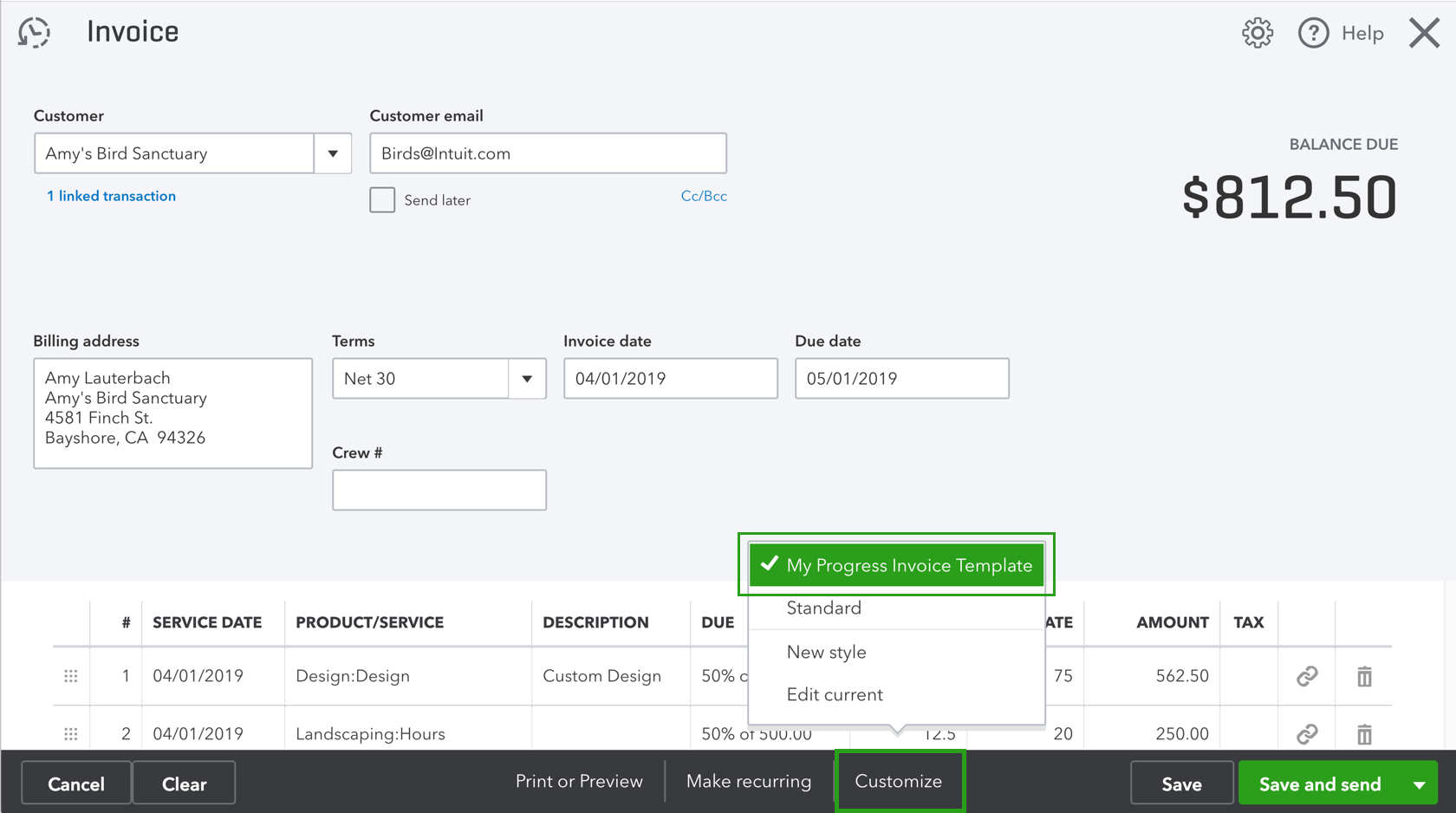
Note: If you only use progress invoices occasionally, keep a separate default template for regular invoices. When creating a progress invoice, select Customize on the invoice form to apply the progress invoice template.
Step 3: Create an Estimate
Select + New and then Estimate
Select your customer.
Fill out the rest of the Estimate.
Select Save and new, Save and close, or Save and send.
If you use the Projects feature (QuickBooks Online Plus and Advanced), add the estimate to a project before creating any progress invoices.
Note: The totals in the remaining column of your Estimate do not include sales tax, discounts, or shipping costs.
Editing a Progress Invoice
To edit an item on a progress invoice, make your changes on the original estimate, not the invoice. You can make changes as long as you have not invoiced for the full estimate amount.
Step 4: Create Progress Invoices
There are two ways to create a progress invoice.
Option A: Create from the Estimate
Go to Sales, then All sales.
Find the Estimate on the list.
Select Create Invoice from the Actions column. You can also open the Estimate and select ‘Convert to Invoice’.
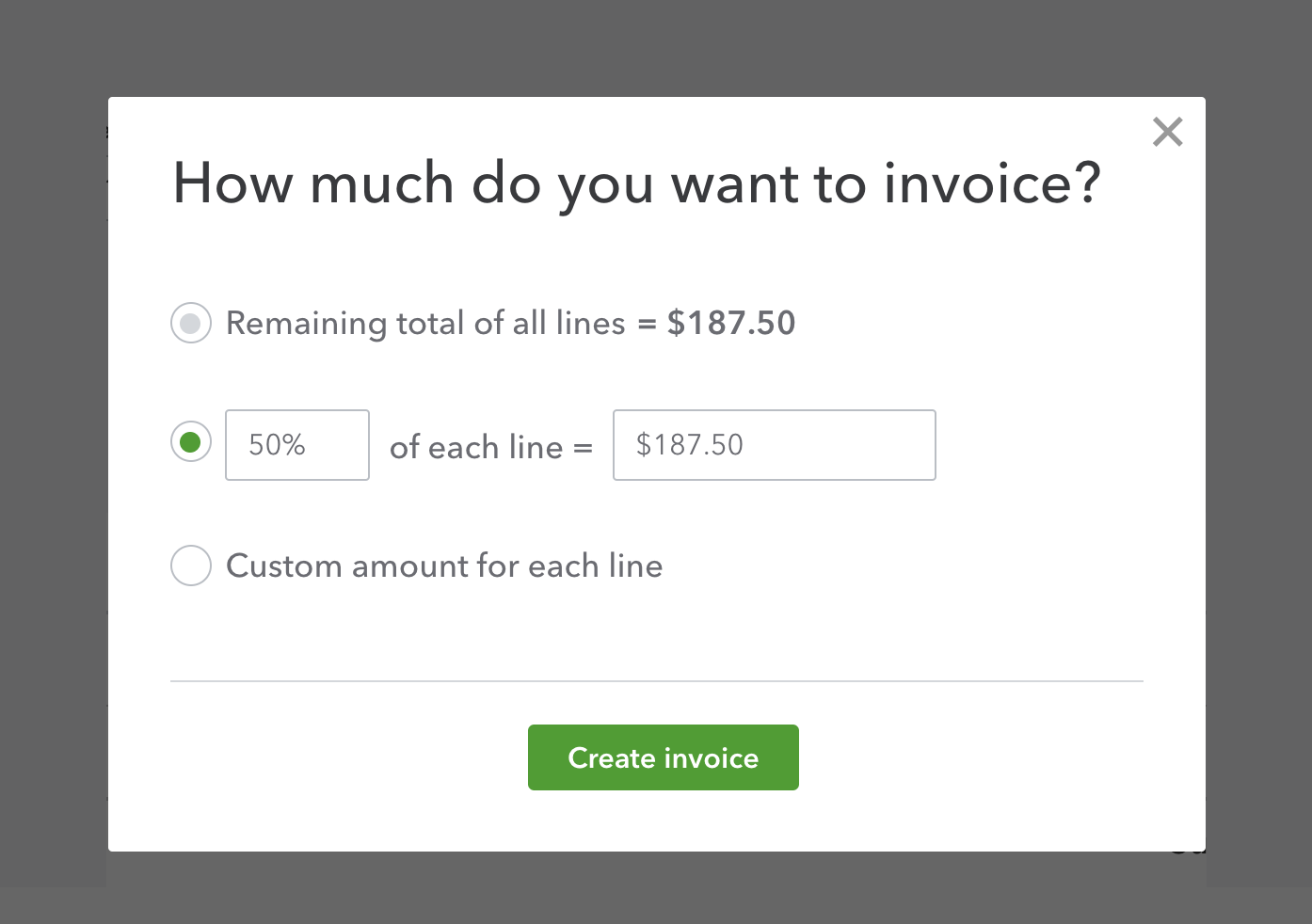
Decide how much you want to invoice for, then select Create Invoice. You can charge for a percentage or a specific amount. If you choose Custom amount for each line, enter a specific amount for each item on the Invoice.
Fill out the rest of the Invoice.
Select Save and new or Save and close.
Option B: Link an Estimate to a New Invoice
Select +New and then Invoice.
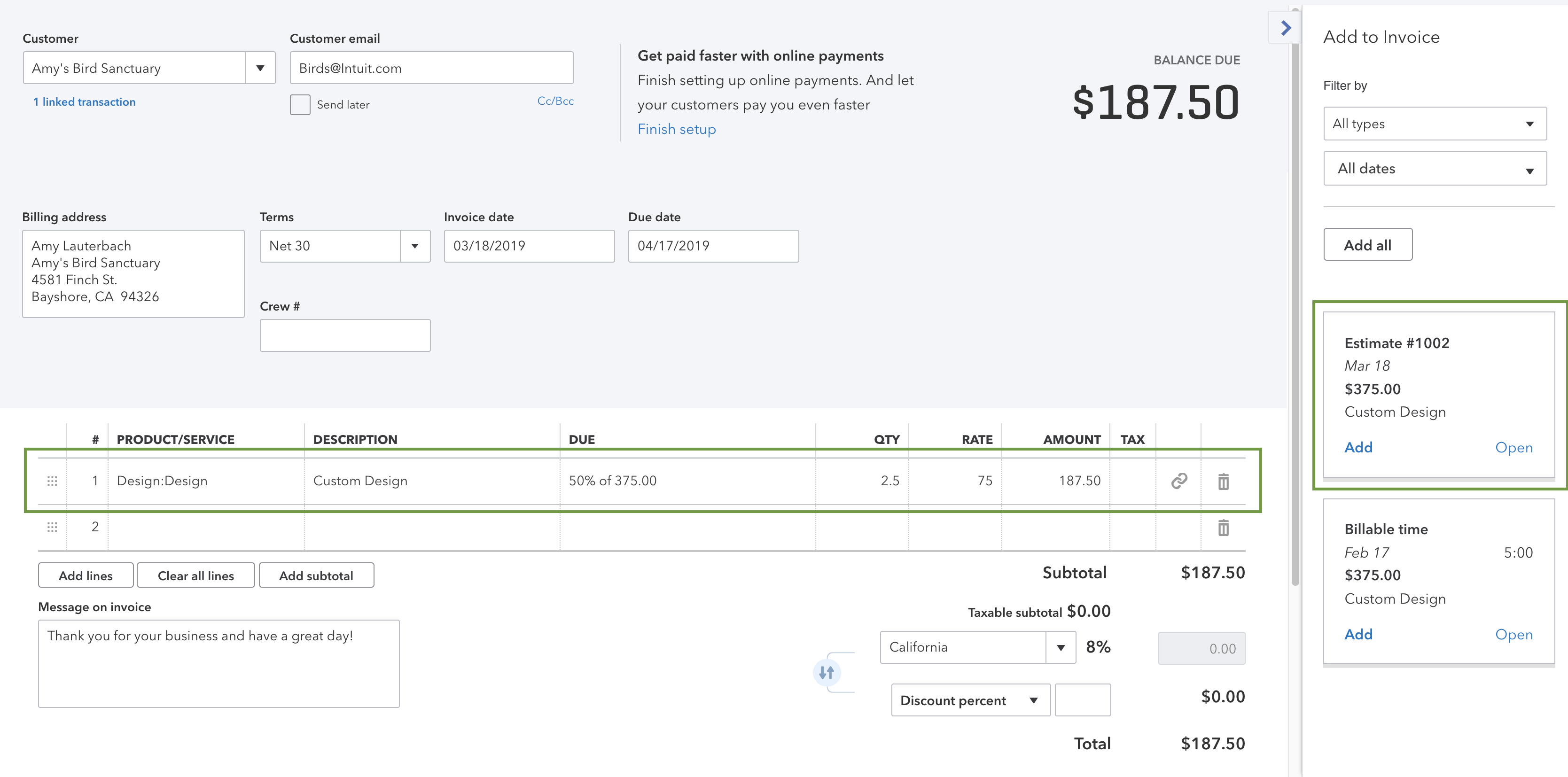
Select your customer from the dropdown menu. If the customer has an open estimate, QuickBooks will open the Add to Invoice sidebar.
Find the Estimate in the sidebar and select Add.
Decide how much you want to invoice for, then select Copy to Invoice.
Fill out the rest of the Invoice.
Select Save and new or Save and close.
Note: Once you have invoiced for the full estimate amount, the estimate status automatically changes to Closed. QuickBooks will not let you invoice for more than the total estimate balance.
Unlinking a Progress Invoice
To disconnect a progress invoice from its estimate, select the bin icon next to the estimate line item on the invoice. Select Yes, unlink it to confirm.
Step 5: Track Your Progress Invoices
Use the following tools to stay organized as you invoice against estimates.
Review the Estimate
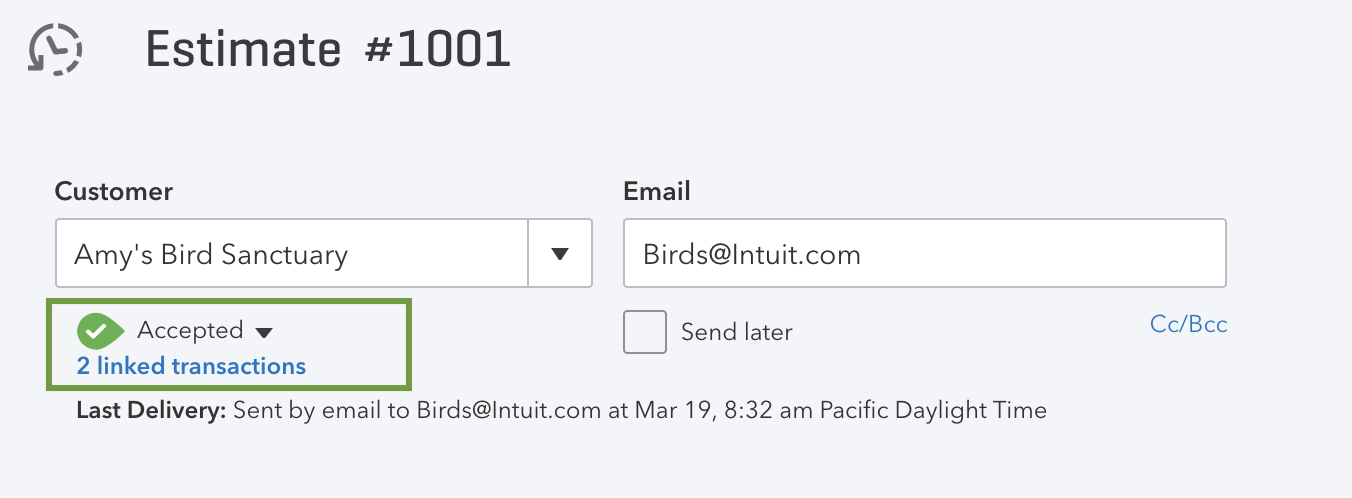
All progress invoices linked to an estimate are visible on the original estimate record.
Go to Sales, then All sales.
Find and open the Estimate.
Select the blue-linked transaction(s) to see the invoices you’ve already created.
Review Progress Invoices
Progress invoices include an estimate summary with the total invoiced. There are also links to the original Estimate and all relevant progress invoices.
You can add estimate summaries to invoices so your customers can see their remaining balance. This is off by default.
Check Projects
If you add estimates to projects, you can see everything in the Transactions tab of a project page.
Run a Report
The Estimates & Progress Invoicing Summary by Customer report provides a complete list of all estimates and associated progress invoices.
Go to Reports.
Search for and open your Estimates& Progress Invoicing Summary by Customer report.