
Biller Genie's automation runs on email — invoices, reminders, receipts, and payment links all reach your customers by email. When a customer record doesn't have an email address but does have an open invoice, that customer effectively sits silently on your A/R with no way for Biller Genie to chase them. The Email Conflicts report surfaces every customer in this state in one place so you can fix them in batches, or explicitly mark them as "I'll never have an email for this customer" so they stop appearing on the list.
What "Email Conflicts" actually flags
A customer appears on the Email Conflicts report when all three of these are true:
- The customer's primary Email field is blank (no email on file at all).
- The customer has at least one open invoice with a remaining balance.
- The customer's Ignore Conflicts toggle is off (you haven't marked them as "skip on this list").
If a customer has no email but has no open invoices either, they don't appear on the list — Biller Genie only flags customers where the missing email is actively blocking collection.
Where to find the report
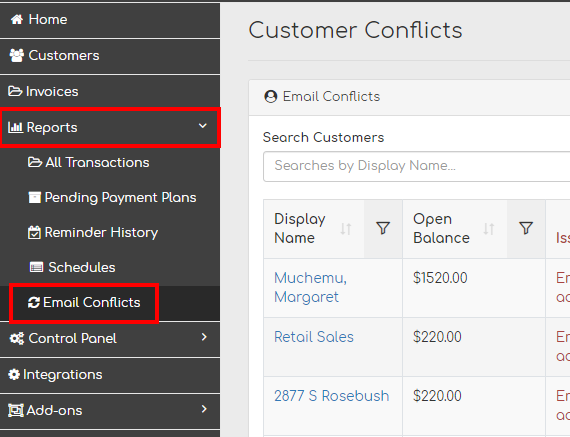
Open Reports > Email Conflicts from the main menu. The page has two grids:
- Email Conflicts — customers who actively need an email added.
- Ignored Conflicts — customers you've intentionally marked as "no email expected" via the Ignore Conflicts toggle.
Adding an email directly from the report
The fastest path is to fix conflicts in place — you don't need to navigate to each customer's record one at a time.
- On the Email Conflicts grid, find the customer.
- In the Actions column, click Add Email.
- Enter the email address and click Add.
The customer's record updates immediately, the customer drops off the Email Conflicts list, and the next scheduled reminder for any of their open invoices will go out to the new email. The change syncs back to your accounting software on the next sync cycle.
Sub-customer prompt
If the customer you're adding an email to is a sub-customer (a Job in QuickBooks, or a sub-customer of a parent), and the parent customer already has an email on file, the Add Email modal will offer to reuse the parent's email address instead. This is the common case for parent/sub setups — most of the time the same person who pays for the parent is the right contact for each sub. Click Use Parent's Email to copy it; or type a different address if the sub-customer has its own contact.
Ignoring conflicts for customers you'll never have an email for
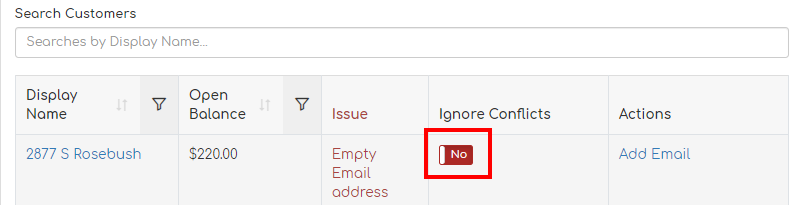
Some customers genuinely won't have an email — walk-in cash customers, customers your team only contacts by phone or paper mail, internal-billing-only accounts that are never sent to a real recipient. For those, mark them as Ignore Conflicts so they stop appearing on the report.
- On the Email Conflicts grid, find the customer.
- In the Ignore Conflicts column, click the toggle.
The customer moves to the Ignored Conflicts grid and stays there. If you ever do add an email for them later, the Ignore Conflicts toggle is independent of the email — toggle Ignore Conflicts off if you want them re-included on the active list (or remove the email if circumstances change).
Ignoring conflicts by default for all new customers
If most of your customers are walk-in or paper-only and you don't want the Email Conflicts list filling up every time you add one, you can flip the default for new customers. Open Control Panel > Customer Defaults, scroll to the Ignore Conflicts toggle, set it to On, and Save Defaults for New Customers. Every new customer added from that point forward will start with Ignore Conflicts on by default — they won't appear on the conflicts list even if they have no email.
Use this only if it matches your reality. The default-off setting (the out-of-the-box behavior) is the right one for most businesses because most businesses do want to know when they're missing an email on an active customer.
Why fixing email conflicts matters
Every customer on the Email Conflicts report has an open invoice with no path for Biller Genie to chase it. Specifically:
- Scheduled invoice reminders for that customer's open invoices do not go out (there's no recipient).
- Statements do not go out for the same reason.
- If the customer is paid by paper mail (and you have the Paper Mail Add-On enabled), paper reminders do still go out — Email Conflicts is specifically about the email side.
- Autopay (if configured) still attempts to run.
Practically, customers on the Email Conflicts list with email-only reminder setups will go unchased until you fix them. A weekly review of the Email Conflicts report is a healthy habit for any AR team.
How to actually get the email from your customer
Practical ways to collect missing emails:
- Call them. The most reliable for high-value accounts. Most customers are happy to give you an email so they can stop receiving paper reminders.
- Check your accounting software. The customer might have an email in QuickBooks/Xero but it wasn't synced (or was synced into the wrong field). Open the customer's record in the source system and copy any email that's there.
- Check any other tools you use. CRM, scheduling software, e-signature systems often have the customer's email when your accounting software doesn't.
- Make email a required field on intake forms going forward so the gap stops growing.